
Two-Factor Authentication
Two-Factor Authentication adds an extra verification step after the username and password login step.
When enabled, users must enter a 6-digit time-based one-time password, also known as a TOTP code, from an authenticator app before they can complete login.
Authica works with standard TOTP-compatible authenticator apps, including:
1Password
Google Authenticator
Authy
Microsoft Authenticator
Most standard TOTP authenticator apps
This protects accounts even if a password is guessed, stolen, or reused somewhere else.
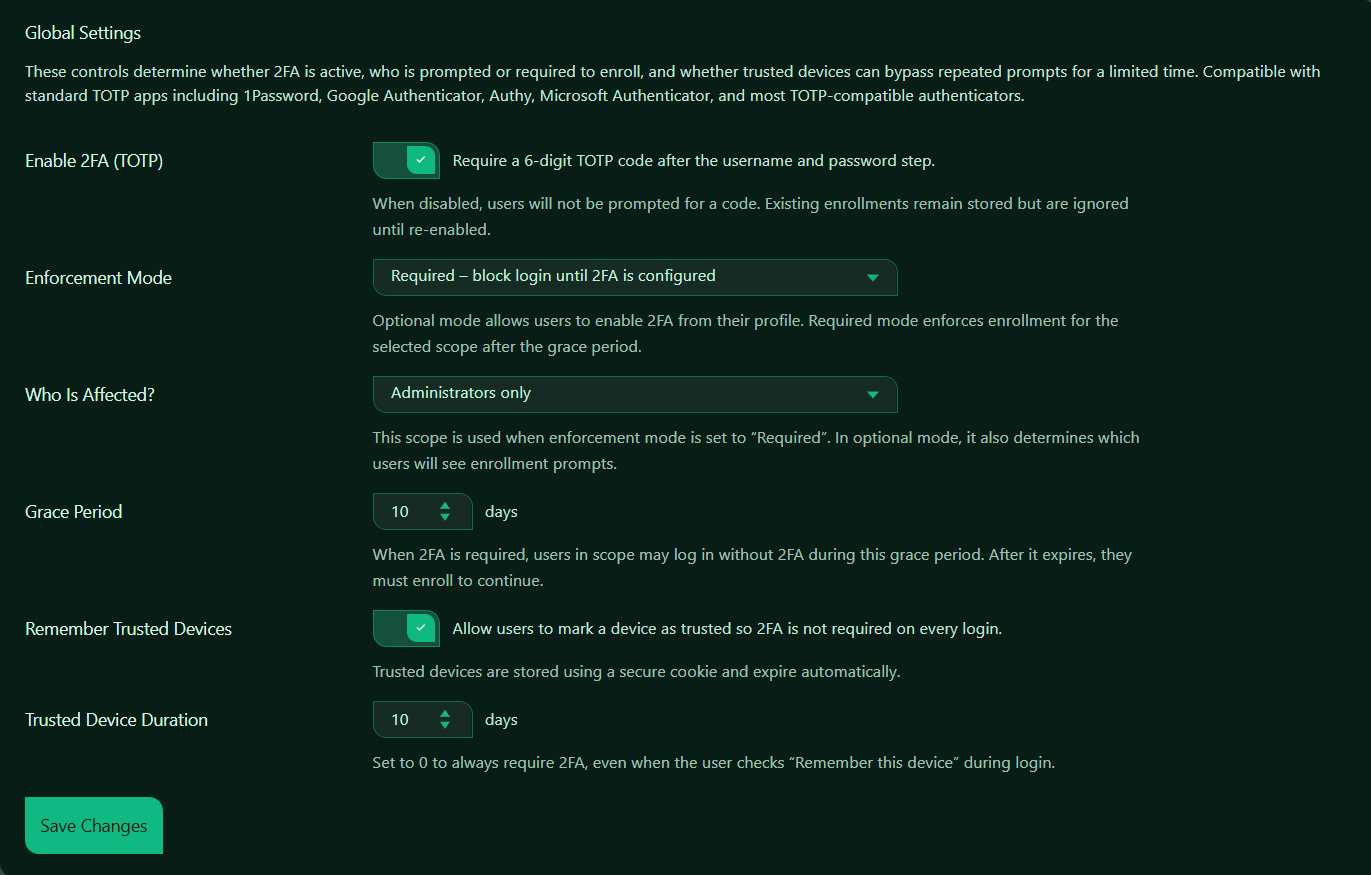
Enable 2FA (TOTP)
This setting turns TOTP-based Two-Factor Authentication on or off.
When enabled, Authica requires users in the selected scope to enter a 6-digit TOTP code after submitting their username and password.
When disabled, users will not be prompted for a 2FA code.
Important behavior:
Existing 2FA enrollments remain stored when 2FA is disabled.
They are ignored while 2FA is disabled and become active again if 2FA is re-enabled.
Recommended setting: Enabled.
For administrator accounts, 2FA should normally stay enabled.
Enforcement Mode
The Enforcement Mode setting controls whether 2FA is optional or required.
Optional Mode
Optional mode allows users to enable 2FA from their profile, but does not force them to enroll.
Use this when:
– You want to offer 2FA without requiring it
– You are introducing 2FA gradually
– You want users to choose whether to enroll
Required Mode
Required mode forces users in the selected scope to configure 2FA.
After the grace period expires, affected users must enroll before they can continue using the site.
Use this when:
– Administrator accounts must be protected
– You want stronger account security
– You need consistent 2FA enforcement for selected roles
Recommended setting for security-focused sites: Required.
Who Is Affected?
The Who Is Affected? setting controls which users are included in the 2FA policy.
Depending on your Authica version and configuration, possible scopes may include options such as:
– Administrators only
– Selected roles
– All users
Recommended setting: Administrators only.
This is a strong starting point because administrator accounts have the highest permissions.
For membership, LMS, WooCommerce, or customer-account websites, you may choose a broader scope if account security is important for all users.
Grace Period
The Grace Period controls how long affected users can continue logging in before they must complete 2FA enrollment.
After the grace period expires, they must enroll before they can continue.
Recommended values:
0 days Immediate enforcement
7 days Strict but practical
10 days Balanced default
14 days More flexible rollout
Use a shorter grace period for high-security sites. Use a longer grace period if you need time to notify users and avoid support issues.
Remember Trusted Devices
This setting allows users to mark a device as trusted during login.
When enabled, users may not need to enter a 2FA code on every login from the same trusted browser/device.
Trusted devices are stored using a secure cookie and expire automatically.
Recommended setting: Enabled.
This improves convenience while still keeping 2FA active for new browsers, new devices, or expired trusted sessions.
Use this carefully on shared or public computers. Users should only trust devices they control.
Trusted Device Duration
The Trusted Device Duration controls how long a trusted device remains trusted.
Recommended values:
0 days Always require 2FA
7 days Stronger security
10 days Balanced default
30 days More convenient
Set this to 0 if you want Authica to always require 2FA, even when the user checks “Remember this device” during login.
Save Changes
After changing Two-Factor Authentication settings, click Save Changes.
Settings are not applied until they are saved.
Recommended Configuration
For most websites, a strong default setup is:
Enable 2FA: Enabled
Enforcement Mode: Required
Who Is Affected: Administrators only
Grace Period: 7 to 10 days
Remember Trusted Devices: Enabled
Trusted Device Duration: 7 to 10 days
For stricter security:
Enable 2FA: Enabled
Enforcement Mode: Required
Who Is Affected: Administrators only or all privileged roles
Grace Period: 0 days
Remember Trusted Devices: Disabled or duration set to 0
For a gradual rollout:
Enable 2FA: Enabled
Enforcement Mode: Optional
Who Is Affected: Administrators only or selected users
Remember Trusted Devices: Enabled
Trusted Device Duration: 10 to 30 days
Best Practices
Recommended best practices:
– Require 2FA for administrator accounts
– Give users a short grace period before enforcement
– Use trusted devices only for private devices
– Do not trust public or shared computers
– Keep backup access procedures available for administrators
Two-Factor Authentication is especially important for administrator accounts because those accounts can manage plugins, users, settings, and site security.
Important Notes
2FA protects accounts after the password step. It does not replace strong passwords, username protection, brute-force protection, or IP restriction.
For best security, use 2FA together with:
– Brute Force Protection
– Username Protection
– Hide WP Login
– IP Restriction
– XML-RPC Hardening
If a user loses access to their authenticator app, they may need administrator help to reset or remove their 2FA enrollment.