
Logging Alerts
Smart Alerts lets Authica send email notifications when it detects suspicious activity patterns.
Instead of checking logs manually, you can have Authica watch for repeated security events and notify you when thresholds are reached. This helps you react faster to login abuse, IP-based attacks, GEO access violations, brute-force activity, and unusual administrator sign-ins.
Smart Alerts can also send digest reports, which provide a summary of recent Authica activity by email.
How Smart Alerts Work
Authica monitors recent security-related activity and compares it against the thresholds you define.
When activity exceeds one of your configured thresholds, Authica can send an email alert to the address you choose.
Example alert types may include:
– Repeated IP blocks in a short time
– Multiple failed logins from one IP
– One username targeted from many IPs
– GEO Access block spikes
– Brute-force lockout spikes
– Administrator login from a new country
This helps you spot attack patterns earlier without reading every event in the Activity log manually.
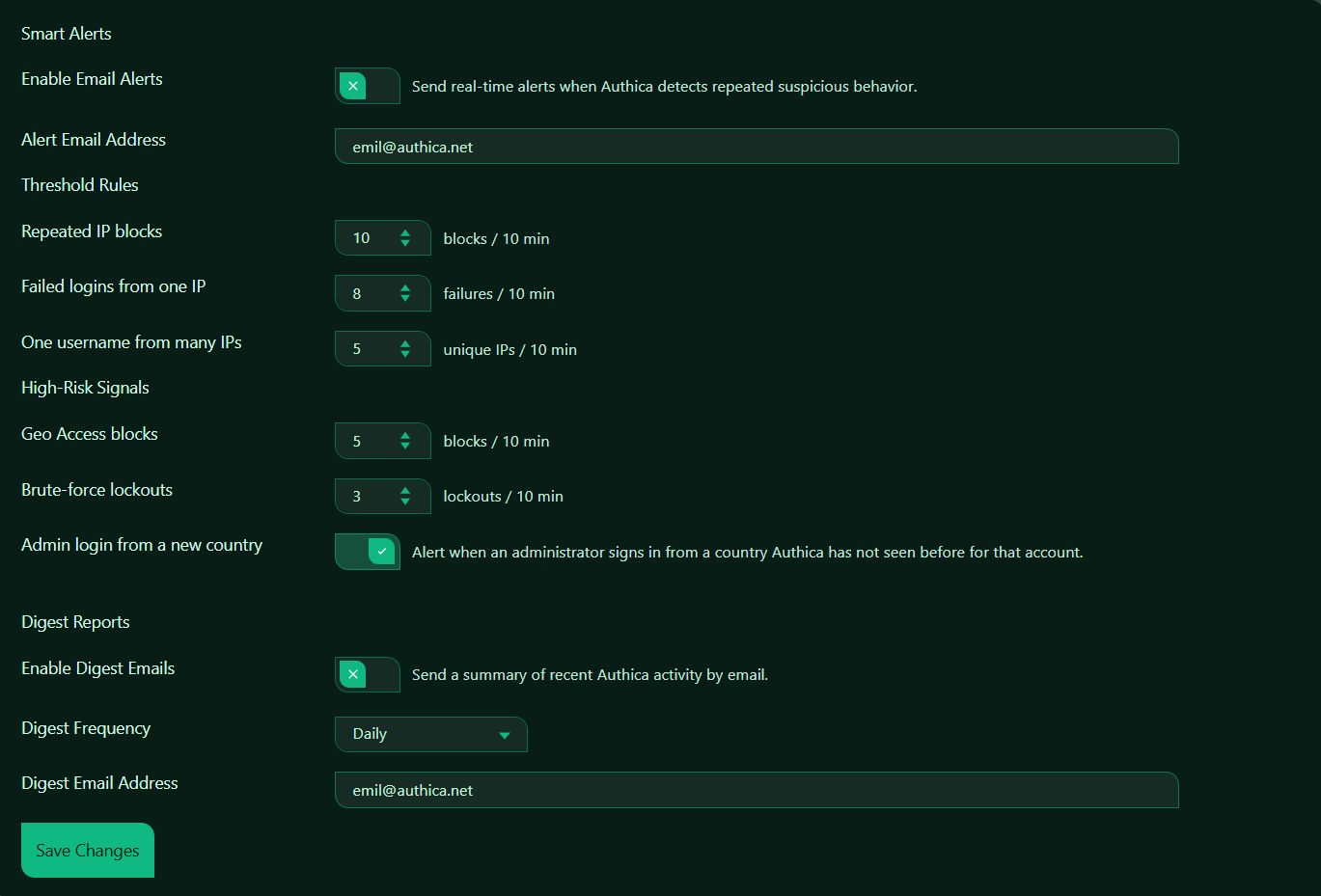
Enable Email Alerts
This setting turns real-time Smart Alerts on or off.
When enabled, Authica sends email alerts when suspicious behavior matches the thresholds you configured.
When disabled, Authica still records activity in the logs if logging is enabled, but it does not send real-time alert emails.
Recommended setting: Enabled.
For most production websites, real-time alerts should be enabled.
Alert Email Address
The Alert Email Address field controls where Authica sends real-time alert emails.
Use an email address that is actively monitored by the site owner, administrator, or security contact.
Recommended usage:
Use an inbox you check regularly.
Avoid using an address that nobody monitors.
For business or agency sites, this could be:
– A main admin email
– A security team inbox
– A support or operations mailbox
Threshold Rules
The Threshold Rules section controls how sensitive Smart Alerts should be.
These settings define how much suspicious activity must happen within a short time before Authica sends an alert.
Repeated IP Blocks
This setting controls how many IP block events must occur within a 10-minute window before Authica sends an alert.
Use this to detect:
– Bursts of blocked IPs
– Widespread login abuse
– Aggressive attack waves
Recommended values:
5 More sensitive
10 Balanced default
20 Less sensitive
Use a lower value if you want earlier warnings. Use a higher value if your site sees frequent routine block events and you want fewer emails
Failed Logins from One IP
This setting controls how many failed login attempts from the same IP must happen within a 10-minute window before Authica sends an alert. This helps detect targeted brute-force attempts from a single IP.
Use this to identify:
– Persistent bad password attempts
– Password guessing
– Concentrated login attacks from one source
Recommended values:
5 Strict / early detection
8 Balanced default
10 More forgiving
A lower threshold catches brute-force attempts faster, while a higher threshold reduces noise.
One Username from Many IPs
This setting controls how many unique IPs must target the same username within a 10-minute window before Authica sends an alert. This helps detect distributed attacks where multiple IPs are trying to access the same account.
Use this to identify:
– Username-targeting campaigns
– Credential stuffing patterns
– Distributed bot attacks
Recommended values:
3 More sensitive
5 Balanced default
10 Less sensitive
This is especially useful for protecting high-value usernames such as administrators.
High-Risk Signals
The High-Risk Signals section covers important attack patterns that may deserve separate alerting.
Access Blocks
This setting controls how many GEO Access block events must happen within a 10-minute window before Authica sends an alert. This helps detect repeated access attempts from blocked countries or areas restricted by Geo Access Control.
Use this to identify:
– Geo-targeted scanning
– Repeated access attempts from blocked countries
– Changes in traffic from restricted regions
Recommended values:
3 More sensitive
5 Balanced default
10 Less sensitive
This setting is especially useful if you rely on Geo Access Control as part of your defense strategy.
Brute-force Lockouts
This setting controls how many brute-force lockouts must occur within a 10-minute window before Authica sends an alert.
This helps detect aggressive brute-force activity that is actively triggering your automatic protections.
Use this to identify:
– Attack spikes
– Repeated blocked login attempts
– Attackers reaching brute-force thresholds
Recommended values:
1 Very sensitive
3 Balanced default
5 Less sensitive
For smaller sites, even 1 or 2 brute-force lockouts in a short time may be worth alerting on.
Admin Login from a New Country
This setting controls whether Authica should alert you when an administrator logs in from a country it has not seen before for that account.
When enabled, Authica watches for a change in country history for administrator logins and sends an alert when a login appears from a new country.
This can help detect:
– Suspicious travel-like logins
– Account compromise
– Unexpected administrator access from a new region
Recommended setting: Enabled.
This is one of the most valuable alert types for administrator account security.
Important note:
This alert is most useful when Authica can see correct country data, typically when the site is behind Cloudflare proxy and GEO data is available.
Digest Reports
Digest Reports send a summary email of recent Authica activity instead of sending individual real-time alerts only.
This is useful if you want a regular overview of recent security activity without watching the logs every day.
Enable Digest Emails
This setting turns digest emails on or off.
When enabled, Authica sends summary reports of recent activity by email.
When disabled, no summary digests are sent.
Recommended setting: Enabled.
Digest emails are a good complement to real-time alerts.
Digest Frequency
The Digest Frequency setting controls how often Authica sends the summary email.
Common frequency choices may include:
– Daily
– Weekly
Daily: Best when you want regular visibility into site security activity.
Weekly: Best when you want a lighter summary and fewer emails.
Recommended setting:
Daily for active sites
Weekly for quieter or lower-maintenance sites
Digest Email Address
The Digest Email Address field controls where Authica sends summary emails.
This can be the same as the alert email address or a different inbox.
Recommended usage:
Use an inbox that is reviewed regularly.
For agencies or teams, use a shared operations or admin mailbox if appropriate.
Save Changes
After changing Smart Alerts settings, click Save Changes.
Settings are not applied until they are saved.
Recommended Configuration
For most websites, we recommend:
Enable Email Alerts: Enabled
Alert Email Address: Active admin/security inbox
Repeated IP blocks: 10 / 10 min
Failed logins from one IP: 8 / 10 min
One username from many IPs: 5 / 10 min
Geo Access blocks: 5 / 10 min
Brute-force lockouts: 3 / 10 min
Admin login from a new country: Enabled
Enable Digest Emails: Enabled
Digest Frequency: Daily
Digest Email Address: Active admin/security inbox
For smaller or quieter sites, you may want slightly lower thresholds so important events are not missed.
For very busy sites, you may want slightly higher thresholds to reduce alert noise.
Best Practices
Recommended best practices:
– Enable real-time alerts for important security events
– Use an email inbox that is actively monitored
– Keep thresholds balanced so you are alerted without being flooded
– Always enable “Admin login from a new country”
– Use digest emails for regular security summaries
– Review and adjust thresholds after observing real traffic
A good alert system should be useful, not noisy. If you receive too many alerts, increase thresholds slightly. If you miss important events, lower them.
Important Notes
Smart Alerts depend on email delivery. If your site has email delivery issues, alerts and digest reports may not arrive.
For best reliability, use proper WordPress email delivery through SMTP or a transactional mail service.
Real-time alerts and digest reports are different.
Real-time alerts are triggered immediately when thresholds are reached.
Digest reports are scheduled summaries of recent activity.