
Magic Links
Magic Links let selected users sign in without entering a password by using a secure sign-in link.
This is useful for passwordless access, recovery workflows, trusted users, temporary access, and fallback login when another login method is unavailable.
Authica lets you control the default link policy, expiration period, enabled users, and per-user overrides.
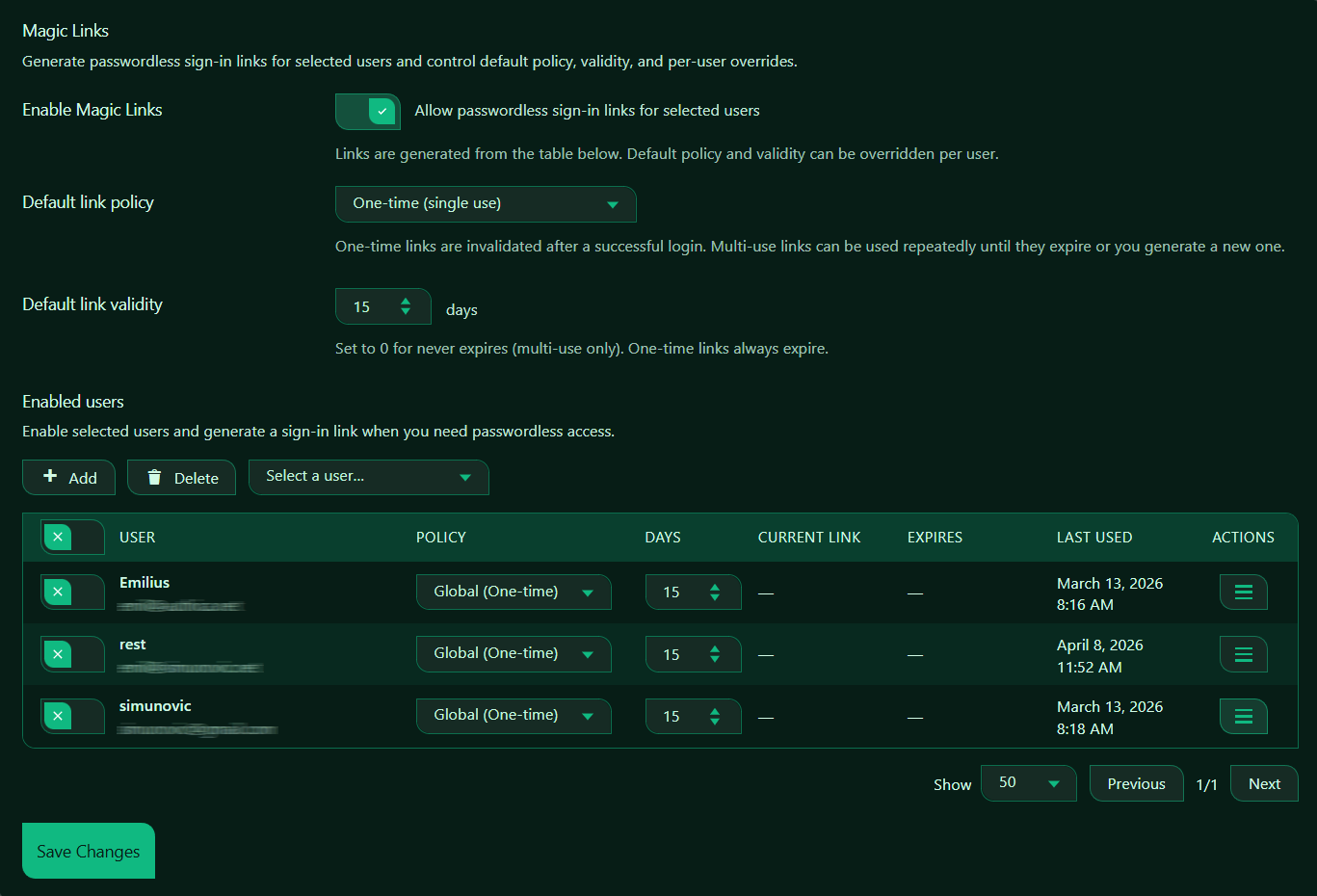
Enable Magic Links
This setting turns Magic Links on or off.
When enabled, Authica allows passwordless sign-in links for selected users.
Recommended setting:
Enabled only if you want selected users to have passwordless access.
Magic Links are generated from the users table below. A user must be added to the enabled users list before Magic Links can be used for that account.
Default Link Policy
The Default link policy controls how generated Magic Links behave by default.
One-time Links
One-time links can be used only once.
After a successful login, the link is invalidated automatically.
Recommended setting: One-time.
This is the safest option for most sites.
Multi-use Links
Multi-use links can be used repeatedly until they expire or until a new link is generated.
Use this only when you intentionally want a reusable passwordless access link.
Recommended usage: Use multi-use links carefully and only for trusted workflows.
Default Link Validity
The Default link validity setting controls how many days a Magic Link remains valid.
This means generated links expire after 15 days unless a per-user override changes the value.
Important behavior:
Set to 0 for never expires, multi-use only.
One-time links always expire.
Recommended values:
1 day Strict temporary access
7 days Balanced short-term access
15 days More flexible access
30 days Longer access window
For most sites, shorter validity is safer.
Enabled Users
The Enabled users section controls which users can use Magic Links.
Magic Links are not automatically available for every WordPress user. You select the users you want to enable, then generate sign-in links when needed.
Recommended usage:
Enable Magic Links only for users who actually need passwordless access.
Add Button
The Add button adds the selected user to the Magic Links table.
Typical workflow:
1. Select a user from the dropdown.
2. Click Add.
3. Review the user’s policy and validity settings.
4. Save changes.
Delete Button
The Delete button removes selected users from the Magic Links table.
Use this when:
– A user no longer needs Magic Link access
– A temporary access period is over
– A user was added by mistake
– You want to disable passwordless links for that account
Removing a user from the table prevents that user from using Magic Links through this feature.
Select a User
The Select a user dropdown lets you choose which WordPress user to add to Magic Links.
Only selected users appear in the enabled users table.
Recommended usage:
Add users intentionally instead of enabling Magic Links broadly.
Magic Links Table
The table shows users who are currently enabled for Magic Links and lets you manage their link policy, validity, current link status, expiration, last use, and available actions.
User
The User column shows the WordPress user account enabled for Magic Links.
It may show the user’s display name and email address.
Use this column to confirm you are managing the correct account.
Policy
The Policy column controls the Magic Link policy for that specific user.
This means the user follows the default global policy.
Depending on your Authica configuration, this may allow options such as:
– Global default
– One-time
– Multi-use
Use per-user policy overrides when one user needs different behavior from the global default.
Days
The Days column controls the link validity period for that specific user.
This usually means the user follows a 15-day validity period.
Use this field when one user needs a shorter or longer link duration than the default.
Recommended usage:
Use shorter durations for temporary access.
Use longer durations only for trusted workflows.
Current Link
The Current Link column shows whether a Magic Link currently exists for the user.
If no link is currently generated, it may show: –
After generating a link, this column may show the current link or a copy/action state, depending on the Authica interface.
Important:
Treat Magic Links like passwords.
Anyone with a valid Magic Link may be able to access that user account.
Do not publish Magic Links publicly.
Expires
The Expires column shows when the current Magic Link will expire.
If no active link exists, it may show: –
Use this column to confirm whether a generated link is still valid.
For one-time links, the link may also become invalid immediately after successful use, even before the expiration date.
Last Used
The Last Used column shows when the user last used a Magic Link.
This helps you review whether a link was used recently.
Use this for:
– Confirming access
– Reviewing passwordless login activity
– Checking whether old links are still unused
– Auditing suspicious or unexpected usage
Actions
The Actions menu contains management options for each enabled user.
Depending on your Authica version, actions may include options such as:
– Generate link
– Delete link
Save Changes
After changing Magic Link settings, user policies, validity days, or enabled users, click Save Changes.
Recommended Configuration
For most websites, we recommend:
Enable Magic Links: Enabled only when needed
Default Link Policy: One-time
Default Link Validity: 1 to 7 days for strict access, 15 days for flexible access
Enabled Users: Only selected trusted users
For temporary support or recovery access:
Policy: One-time
Days: 1 to 3
Revoke after use if needed
For trusted recurring passwordless access:
Policy: Multi-use
Days: Short practical expiration
Review usage regularly
Best Practices
Recommended best practices:
– Use one-time links whenever possible
– Keep link validity short
– Enable Magic Links only for selected users
– Send links through secure/private channels
– Regenerate or revoke links if they may be exposed
– Review Last Used activity regularly
– Avoid never-expiring links unless absolutely necessary
Magic Links should be treated with the same care as passwords.
Important Notes
Magic Links provide passwordless access. A valid link can be enough to sign in as the selected user.
For that reason:
– Do not post Magic Links publicly
– Do not send them in public chats
– Do not store them in shared documents
– Revoke links that are no longer needed
Magic Links depend on your site URL, login configuration, and email/security workflow. If your site uses Hide WP Login, redirects, caching, or security rules, test Magic Link login after configuration.