
Passkey
Passkeys let users sign in without typing a password. They use modern device-based authentication, such as biometrics, device PINs, security keys, or platform authenticators.
Authica Passkeys help prepare your site for passwordless login by allowing users to register passkey devices, sign in with a dedicated passkey button, and use fallback methods when needed.
Passkeys are useful because they can reduce password-based attacks, phishing risk, and repeated password entry.
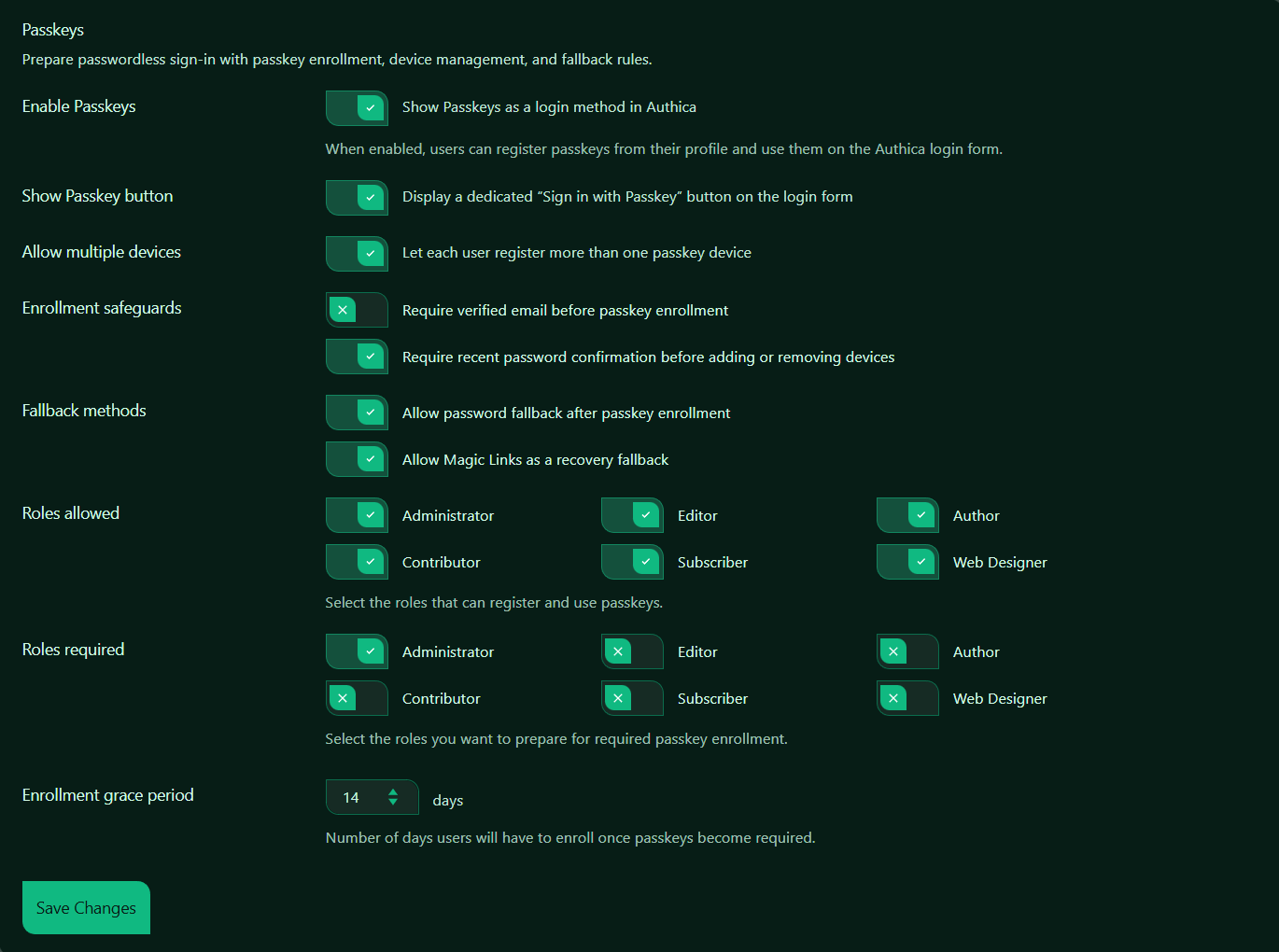
Enable Passkeys
This setting turns Passkeys on or off.
When enabled, Authica shows Passkeys as an available login method and allows eligible users to register passkeys from their profile.
Recommended setting: Enabled.
When disabled, users cannot use Passkeys through Authica, even if they previously registered a passkey.
Show Passkey Button
This setting controls whether Authica displays a dedicated Sign in with Passkey button on the login form.
When enabled, users can start passkey login directly from the Authica login page.
Recommended setting: Enabled.
This makes the passwordless login option clear and easy to find.
Allow Multiple Devices
This setting allows each user to register more than one passkey device.
When enabled, a user can add multiple passkeys, such as:
– Laptop passkey
– Phone passkey
– Tablet passkey
– Hardware security key
Recommended setting: Enabled.
This is safer and more convenient because users can still access their account if one device is lost, replaced, or unavailable.
Enrollment Safeguards
Enrollment safeguards control what must happen before a user can add or remove passkey devices.
These settings help prevent unauthorized changes to a user’s passkey setup.
Require Verified Email Before Passkey Enrollment
This setting requires the user’s email address to be verified before they can enroll a passkey.
Recommended usage:
Enable this if Email Verification is active on your site and you want users to confirm their email before adding passkeys.
This is useful for public registration sites because it helps make sure the account owner controls the email address before passkey enrollment.
Require Recent Password Confirmation
This setting requires users to confirm their password recently before adding or removing passkey devices.
Recommended setting: Enabled.
This adds an extra safety check before sensitive passkey changes.
Use this to reduce the chance that someone with an unattended logged-in session can add or remove passkey devices without confirming account ownership.
Fallback Methods
Fallback methods control what users can use if passkey login is unavailable.
This is important because users may lose access to a device, switch browsers, replace hardware, or use a device that does not support passkeys.
Allow Password Fallback After Passkey Enrollment
This setting allows users to continue signing in with their password even after they have enrolled a passkey.
Recommended setting: Enabled.
This is the safest option during rollout because users still have a familiar recovery path if passkey login fails.
For stricter passwordless environments, this may be disabled later, but only after you are confident users have reliable recovery options.
Allow Magic Links as a Recovery Fallback
This setting allows Magic Links to be used as a recovery option when passkey login is unavailable.
Recommended setting: Enabled.
This provides an additional recovery path, especially for users who lose access to a passkey device.
Magic Links should be configured carefully and depend on reliable email delivery.
Roles Allowed
The Roles allowed section controls which WordPress roles can register and use passkeys.
This means users with those roles can enroll and use passkeys if Passkeys are enabled.
Recommended usage:
Allow passkeys for roles that should have passwordless login access.
For most sites, allowing passkeys for all normal user roles is fine.
For stricter sites, you may start with administrators only, then expand to other roles later.
Roles Required
The Roles required section controls which roles should be prepared for required passkey enrollment.
This means administrators are selected for required passkey enrollment, while other roles are not.
Recommended setting:
Administrators: Required
Other roles: Optional unless your site policy requires stronger authentication for them
This is a good security-focused setup because administrator accounts have the highest permissions.
Difference Between Roles Allowed and Roles Required
These two sections are related but not the same.
Roles Allowed
Controls who can use passkeys.
Roles Required
Controls who must enroll once passkey requirements are enforced.
Simple summary:
Roles allowed = passkeys are available
Roles required = passkeys are mandatory
Enrollment Grace Period
The Enrollment grace period controls how many days users have to enroll once passkeys become required.
That means users in required roles have 14 days to enroll before passkey enrollment becomes mandatory.
Recommended values:
0 days Immediate requirement
7 days Strict rollout
14 days Balanced rollout
30 days More relaxed rollout
For most sites, 7 to 14 days is a good balance.
Save Changes
After changing Passkey settings, click Save Changes.
Settings are not applied until they are saved.
Recommended workflow:
1. Enable Passkeys.
2. Show the Passkey button on the login form.
3. Allow multiple devices.
4. Enable recent password confirmation.
5. Keep password fallback enabled during rollout.
6. Enable Magic Link fallback if available.
7. Choose roles allowed to use passkeys.
8. Choose roles required to enroll.
9. Set the enrollment grace period.
10. Click Save Changes.
11. Test passkey enrollment and login with a real user account.
Recommended Configuration
For most websites, we recommend:
Enable Passkeys: Enabled
Show Passkey Button: Enabled
Allow Multiple Devices: Enabled
Require Recent Password Confirmation: Enabled
Allow Password Fallback: Enabled
Allow Magic Links as Recovery Fallback: Enabled
Roles Allowed: All roles that should use passkeys
Roles Required: Administrators
Enrollment Grace Period: 7 to 14 days
This gives users a smooth passwordless login path while keeping administrator accounts better protected.
Best Practices
Recommended best practices:
– Require passkeys for administrator accounts first
– Allow multiple devices so users have backup authenticators
– Keep password fallback enabled during initial rollout
– Use Magic Links as an additional recovery method if email delivery is reliable
– Require recent password confirmation before passkey device changes
– Test passkey login on desktop and mobile
Passkeys are strongest when users register more than one trusted device.
Important Notes
Passkeys depend on browser, device, and operating system support.
Most modern browsers and devices support passkeys, but user experience may vary depending on the platform.
Users should keep at least one backup login or recovery method available, especially if passkeys are required.
Passkeys are a login method, but they should still be used alongside other Authica protections such as:
– Brute Force Protection
– Username Protection
– Two-Factor Authentication
– IP Restriction
– Emergency Lockout