
Role-based Redirections
Role-based Login Redirects let you send users to different destinations after login based on their WordPress role.
This is useful when different user groups need different post-login experiences. For example, administrators may go to the Authica dashboard, subscribers may go to their profile page, and members or customers may go to a custom account area.
How Role-based Redirects Work
Authica checks the user’s assigned WordPress role after login and redirects the user to the destination configured for that role. If a user has more than one role, the first matched role is used. If a role field is left blank, Authica falls back to the default login redirect from the general Redirect Settings section.
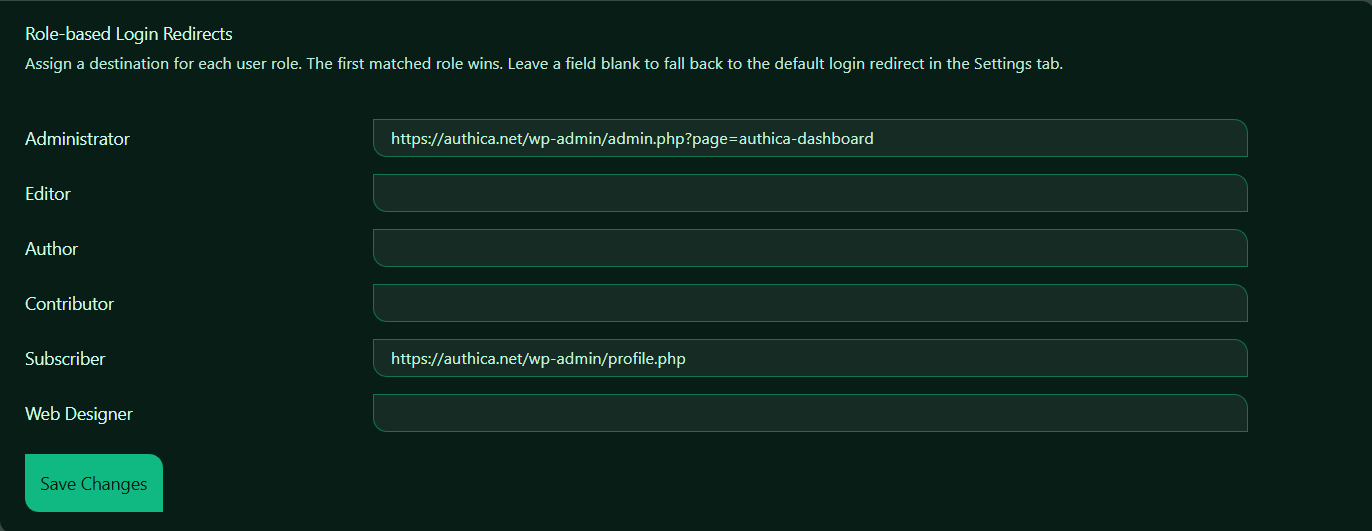
Administrator
The Administrator redirect controls where admin users are sent after login.
Example: https://example.com/wp-admin/admin.php?page=authica-dashboard.
This is useful if you want administrators to go directly to the Authica dashboard, WordPress dashboard, or another admin page after login.
Recommended destinations:
/wp-admin/
/wp-admin/admin.php?page=authica-dashboard
/wp-admin/plugins.php
Use an administrator-only page only for users who actually have permission to access it.
Editor
The Editor redirect controls where users with the Editor role are sent after login.
Editors usually manage content, pages, posts, and media.
Common redirect destinations:
/wp-admin/edit.php
/wp-admin/post-new.php
/wp-admin/upload.php
Leave this field blank if Editors should use the default fallback login redirect.
Author
The Author redirect controls where users with the Author role are sent after login.
Authors usually create and manage their own posts.
Common redirect destinations:
/wp-admin/edit.php
/wp-admin/post-new.php
/wp-admin/profile.php
Leave this field blank if Authors should use the default fallback login redirect.
Contributor
The Contributor redirect controls where users with the Contributor role are sent after login.
Contributors usually write and manage their own draft posts but cannot publish them.
Common redirect destinations:
/wp-admin/edit.php
/wp-admin/post-new.php
/wp-admin/profile.php
Leave this field blank if Contributors should use the default fallback login redirect.
Subscriber
The Subscriber redirect controls where users with the Subscriber role are sent after login.
Common redirect destinations:
/wp-admin/profile.php
/account/
/my-account/
/members-area/
For public membership or customer websites, you may prefer sending Subscribers to a front-end account page instead of the WordPress admin profile page.
Custom Roles
Authica can also show custom roles created by your theme, membership plugin, LMS plugin, WooCommerce, or other plugins. You can assign a redirect destination to custom roles the same way you do for default WordPress roles.
Blank Fields
A blank role field means Authica will not use a special redirect for that role.
Instead, Authica will use the fallback login redirect from the general Redirect Settings section.
This is useful when only a few roles need custom destinations.
Save Changes
After editing role-based redirects, click Save Changes.
Redirect changes are not applied until they are saved.
Recommended Configuration
For most websites, a simple setup works best:
Administrator: /wp-admin/
Subscriber: /my-account/ or /wp-admin/profile.php
Other roles: blank
For Authica-focused admin workflows:
Administrator: /wp-admin/admin.php?page=authica-dashboard
Subscriber: /wp-admin/profile.php
All other roles: blank
For membership or customer websites:
Administrator: /wp-admin/
Customer: /my-account/
Subscriber: /account/
All other roles: blank
Important Notes
Use destinations that each role is allowed to access.
For example, do not redirect Subscribers to an admin-only plugin page unless they have permission to view it. If a user is redirected to a page they cannot access, WordPress may show an error or send them elsewhere.
For best results, use same-site URLs and test each role after saving your changes.