
Brute Force Protection
Brute Force Protection helps protect your WordPress login area by monitoring failed login attempts from the same IP address.
When an IP exceeds the configured failed-login threshold within the selected time window, Authica automatically adds that IP to the IP Restriction Deny List.
This helps block aggressive login attempts, password guessing, automated bots, and repeated unauthorized access attempts.
How Brute Force Protection Works
Authica watches failed login attempts by IP address.
When the same IP reaches the configured limit, Authica blocks it automatically.
Example:
Failed Attempts Threshold: 3
Time Window: 48 minutes
Brute Force Duration: 1 hour
This means:
– If the same IP fails login 3 times within 48 minutes, it is blocked.
– Authica adds the IP to the IP Restriction Deny List.
– The automatic block expires after 1 hour.
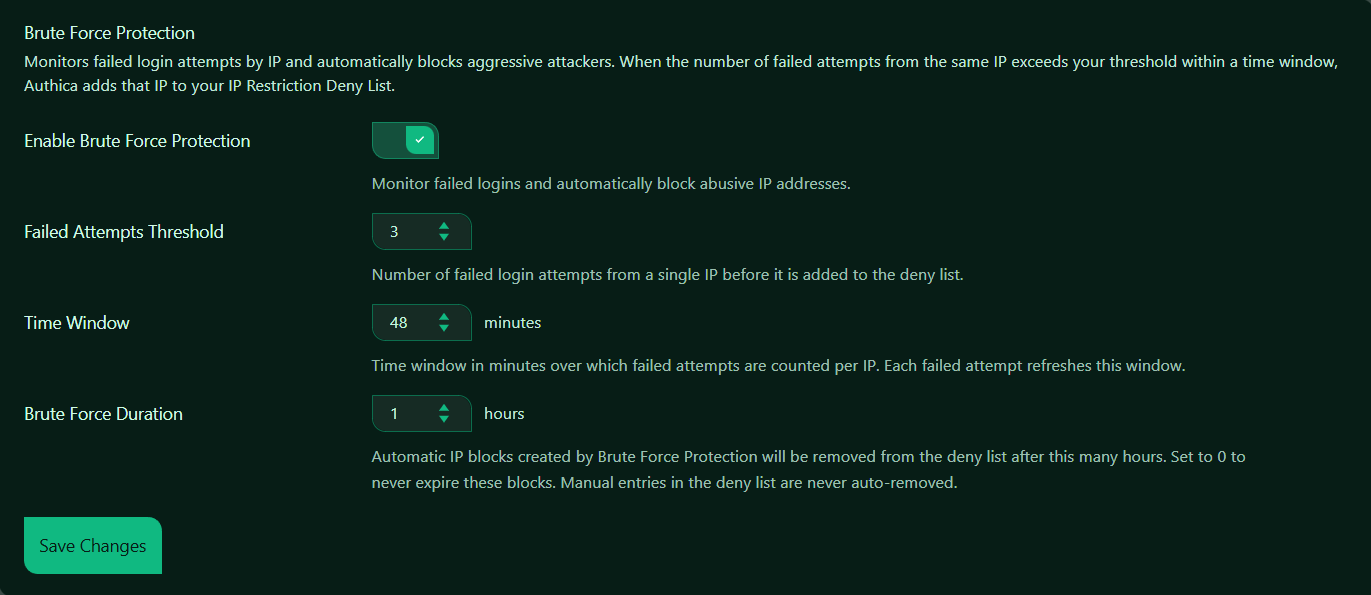
Enable Brute Force Protection
This setting turns Brute Force Protection on or off.
When enabled, Authica monitors failed login attempts and automatically blocks abusive IP addresses.
When disabled, Authica does not automatically block IPs based on failed login attempts.
Recommended setting: Enabled.
This is one of the most important login security features and should normally stay enabled.
Failed Attempts Threshold
The Failed Attempts Threshold controls how many failed login attempts are allowed from the same IP before Authica blocks it.
Recommended values:
3 Strict protection
5 Balanced protection
10 More forgiving
For most sites, 3 to 5 is a good range.
Use a lower value for stronger security. Use a higher value if you have users who often mistype passwords.
Time Window
The Time Window controls how long Authica watches failed attempts from the same IP.
For example, the time window is set to: 48 minutes.
This means Authica counts failed attempts from the same IP during a 48-minute period.
Each failed attempt refreshes the window.
Example:
Threshold: 3
Time Window: 48 minutes
If the same IP fails login 3 times within 48 minutes, Authica blocks it.
Recommended values:
15 minutes Shorter window, less aggressive
30 minutes Balanced
48 minutes Stronger monitoring
60 minutes Strict monitoring
A longer time window makes it easier to catch slow brute-force attempts.
Brute Force Duration
The Brute Force Duration controls how long automatically blocked IPs stay in the Deny List.
For example, the duration is set to: 1 hour.
This means an IP automatically blocked by Brute Force Protection will be removed from the Deny List after 1 hour.
Recommended values:
1 hour Good starting point
6 hours Stronger protection
24 hours Strict protection
0 Never auto-expire automatic blocks
Use 0 only if you want automatic brute-force blocks to remain permanently until manually removed.
Important
Manual Deny List entries are never auto-removed by Brute Force Protection.
Only automatic Brute Force Protection entries follow the Brute Force Duration setting.
Save Changes
After changing Brute Force Protection settings, click Save Changes.
Settings are not applied until they are saved.
Recommended Configuration
For most websites, we recommend:
Enable Brute Force Protection: Enabled
Failed Attempts Threshold: 3 to 5
Time Window: 30 to 60 minutes
Brute Force Duration: 1 to 6 hours
A strong default setup:
Failed Attempts Threshold: 3
Time Window: 48 minutes
Brute Force Duration: 1 hour
This blocks aggressive login attempts quickly while still allowing temporary blocks to expire automatically.
How It Works with the Deny List
When Brute Force Protection blocks an IP, Authica adds it to the IP Restriction Deny List.
Automatic brute-force entries can expire based on the Brute Force Duration setting.
Manual Deny List entries are different. They remain blocked until you remove them manually.
Best Practices
Recommended best practices:
– Keep Brute Force Protection enabled
– Use a threshold low enough to stop repeated attacks
– Use a time window long enough to catch slower bots
– Use temporary block durations first before choosing permanent blocks
– Review the Deny List occasionally
For most public WordPress sites, avoid setting the threshold too high. Bots often make repeated attempts quickly, and a low threshold helps stop them early.
Important Notes
Brute Force Protection is based on failed login attempts by IP address.
If many legitimate users share the same public IP, such as an office, school, VPN, or public network, a strict threshold may block that shared IP after several failed attempts.
If your site is behind Cloudflare or another proxy, make sure Authica is detecting the real visitor IP address correctly.