
Username Protection
Username Protection helps reduce one of the most common WordPress attack patterns: bots trying to discover valid usernames before brute-forcing passwords.
Attackers often begin by guessing or discovering your login username. If your public author URL, author archive, or other visible profile data reveals the same value as your actual login username, the attacker already has half of what they need.
Authica’s Username Protection helps by:
– Protecting specific usernames from being used during login attempts
– Returning a stealth response when protected usernames are submitted
– Blocking common username discovery methods such as author enumeration
Best practice:
Keep your public author slug and display name different from your actual login username.
How Username Protection Works
Username Protection focuses on usernames that should never be used during login attempts.
These may include:
– Your real administrator login usernames
– Common bot targets like admin
– Decoy usernames you want to trap
– Public author slugs that attackers may try
When a protected username is used, Authica can immediately serve a Stealth 404 response on the first attempt instead of behaving like a normal login failure.
This makes automated username-based attacks less effective and less informative.
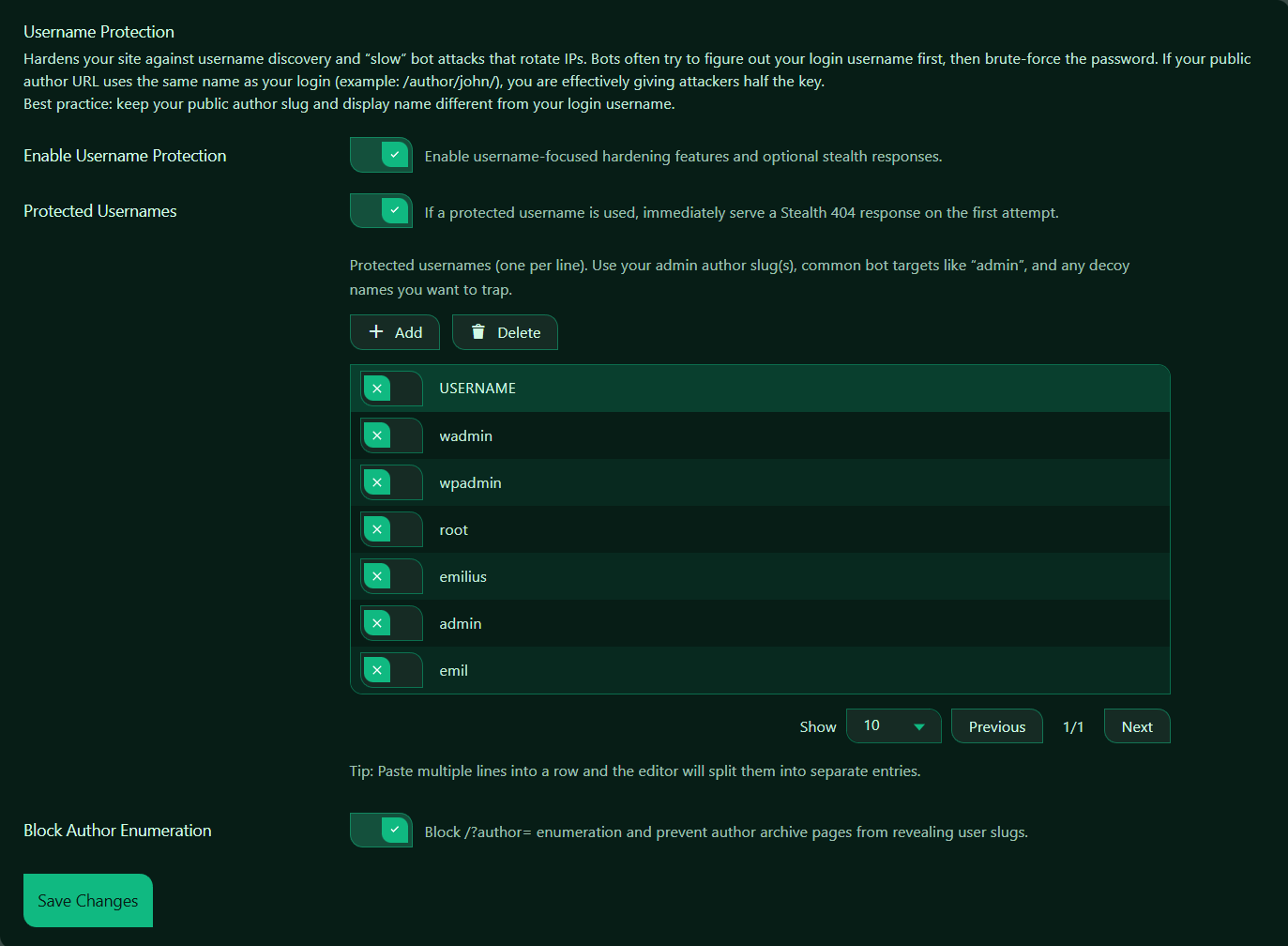
Enable Username Protection
This setting turns Username Protection on or off.
When enabled, Authica activates username-focused hardening features and optional stealth responses.
Recommended setting: Enabled.
For most WordPress sites, this should stay enabled.
Protected Usernames
This setting enables special handling for usernames you define in the protected list.
In your screenshot, this option is enabled and the description says:
If a protected username is used, immediately serve a Stealth 404 response on the first attempt.
That means if someone tries to log in using one of the protected usernames, Authica does not treat it like a normal login failure. Instead, it returns the stealth response immediately.
Recommended setting: Enabled.
This is especially useful for:
– Real admin usernames
– Usernames exposed through public slugs
– Common attack targets like admin
– Trap or decoy usernames
What to Add Here
You should normally add:
– Your real admin login usernames
– Public author slugs that match or resemble login names
– Common attack targets like admin, administrator, root, wpadmin
– Decoy names you want bots to hit
Block Author Enumeration
This setting blocks one of the most common WordPress username discovery techniques.
Block /?author= enumeration and prevent author archive pages from revealing user slugs.
When enabled, Authica helps prevent attackers from discovering usernames through:
/?author=1
/?author=2
/?author=3
These types of URLs are commonly used by bots to reveal WordPress author slugs and identify valid usernames.
Recommended setting: Enabled.
Why Author Enumeration Matters
Many bots first try to discover usernames before attacking passwords.
If WordPress author archives reveal usernames or author slugs, attackers can use that information to target valid accounts.
Example risk:
Your login username: john
Public author slug: /author/john/
That makes it much easier for attackers to guess the correct username.
A safer setup is:
Login username: john_admin_private
Public author slug: /author/john-s/
Display name: John Smith
This keeps your public-facing identity separate from your real login name.
Save Changes
After changing Username Protection settings, click Save Changes.
Changes are not applied until they are saved.
Recommended Configuration
For most websites, we recommend:
Enable Username Protection: Enabled
Protected Usernames: Enabled
Block Author Enumeration: Enabled
For the protected usernames list, include:
– Your real admin usernames
– Your admin author slugs if relevant
– Common bot targets like admin, root, wpadmin
– Optional decoy usernames
Best Practices
Recommended best practices:
– Keep your real login usernames private
– Do not use easy usernames like admin
– Keep public author slugs different from login usernames
– Keep public display names different from login usernames
– Enable author enumeration blocking
– Add common attack-target usernames to the protected list
This gives attackers much less useful information.
Important Notes
Username Protection works best when combined with other Authica security features such as:
– Brute Force Protection
– Stealth 404 Protection
– Hide WP Login
– Two-Factor Authentication
– IP Restriction
Protecting usernames is only one part of the login security process, but it is an important one because it reduces the chance that attackers will identify valid accounts.