
Logging Settings
Logging Settings control how Authica records security-related activity in the Authica log table.
This helps you keep a useful history of authentication and security events without storing unnecessary data forever. You can choose which events to log, how long to keep them, and how many total log entries Authica should retain before trimming older records automatically.
What Logging Is Used For
Authica logging helps you monitor important security activity such as:
– IP restriction and block actions
– Failed login attempts
– Successful logins
These logs can help with:
– Reviewing suspicious activity
– Auditing login behavior
– Investigating lockouts or attack attempts
– Understanding how your security rules are being used
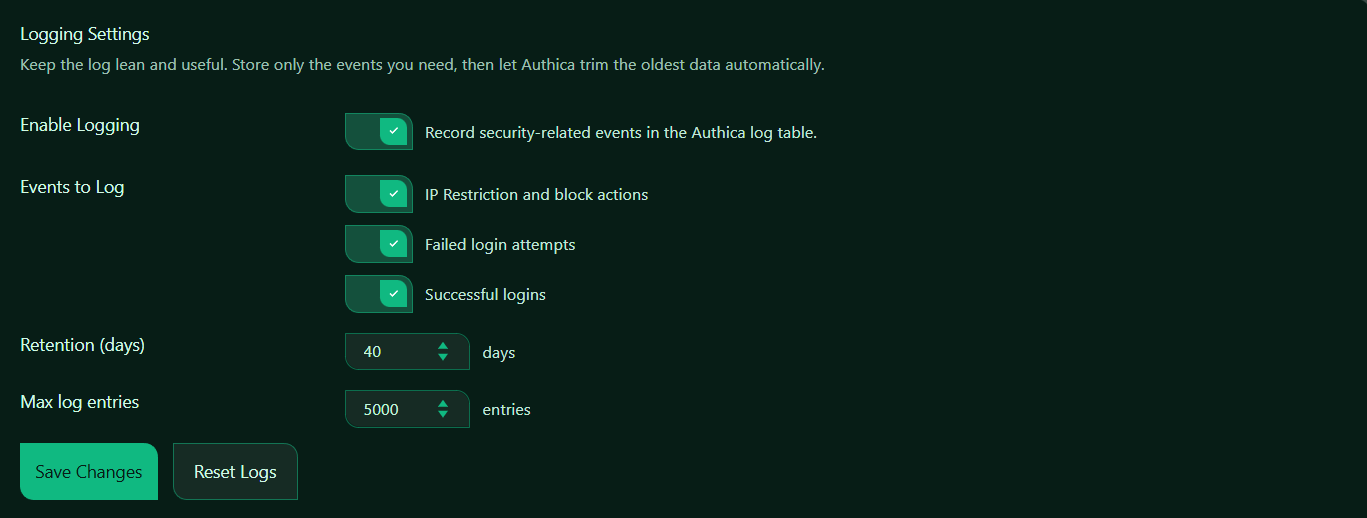
Enable Logging
This setting turns Authica logging on or off.
When enabled, Authica records the selected security-related events in the Authica log table.
When disabled, Authica stops recording new log events.
Recommended setting: Enabled.
For most websites, logging should remain enabled so you have useful visibility into login and security activity.
Events to Log
The Events to Log section lets you choose exactly which types of events Authica should record.
This allows you to keep the log focused on the data you actually need.
IP Restriction and Block Actions
This option records events related to IP-based security controls.
Examples may include:
– IP restriction blocks
– Access denied by allow/deny rules
– Brute-force related IP blocks
– Stealth 404 or block-related enforcement events
Recommended setting: Enabled.
This is useful for tracking when and why IP-based protection actions occurred.
Failed Login Attempts
This option records failed login attempts.
Examples may include:
– Incorrect password attempts
– Invalid login attempts
– Repeated failed attempts from the same IP
Recommended setting: Enabled.
This is one of the most important event types to keep, because it helps you identify brute-force attempts, bad credentials, and suspicious login behavior.
Successful Logins
This option records successful user logins.
Examples may include:
– User logged in successfully
– Login from a specific IP or country
– Legitimate account access history
Recommended setting: Enabled.
This is useful for auditing account access and confirming legitimate user activity.
Retention (Days)
The Retention (days) setting controls how long Authica keeps log entries before older records are trimmed automatically.
This means Authica keeps log entries for up to 40 days, then older entries are removed automatically.
Recommended values:
14 days Smaller sites / lighter logging
30 days Balanced default
40 days Good practical range
90 days Longer audit history
Use a shorter value if you want a leaner log table. Use a longer value if you want more historical visibility for investigation or reporting.
Max Log Entries
The Max log entries setting controls the maximum total number of log rows Authica should keep.
This means Authica trims older data when the log grows beyond 5000 entries.
Recommended values:
1000 Light logging
5000 Balanced default
10000 Larger sites or busier activity
This setting works together with the retention setting. In practice, Authica trims logs based on age and total size so the log stays useful and manageable.
Save Changes
After changing Logging Settings, click Save Changes.
Settings are not applied until they are saved.
Reset Logs
The Reset Logs button clears the stored Authica log entries.
Use this when you want to:
– Start with a clean log
– Remove old test data
– Clear development or staging activity
– Reset the log before production use
Important: Reset Logs removes stored log history.
Use it carefully, especially on production sites, because it can remove information that may be useful later for auditing or troubleshooting.
Recommended usage:
Use Reset Logs only when you intentionally want to clear the current log history.
Recommended Configuration
For most websites, we recommend:
Enable Logging: Enabled
IP Restriction and block actions: Enabled
Failed login attempts: Enabled
Successful logins: Enabled
Retention: 30 to 40 days
Max log entries: 5000
This gives a good balance between useful security visibility and keeping the log table lean.
For smaller sites:
Retention: 14 to 30 days
Max log entries: 1000 to 3000
For busier sites:
Retention: 40 to 90 days
Max log entries: 5000 to 10000
Best Practices
Recommended best practices:
– Keep logging enabled
– Always log failed login attempts
– Keep IP restriction and block actions enabled for better security visibility
– Log successful logins if you want account access history
– Use retention and max entries together to keep the log manageable
– Reset logs only when truly needed
If you do not need every possible event, keep the selected event types focused so the log stays easier to review.
Important Notes
Logging stores security-related event history, but it should be kept practical.
Too little logging can make troubleshooting difficult. Too much logging can create noise and make useful events harder to review.
For most sites, the three event types shown in your screenshot are a strong default combination.
If your site is behind Cloudflare and Authica receives GEO data properly, logs may also include country-related information in Activity views.