
Email Verification
Email Verification helps protect your WordPress site by requiring users to confirm their email address before their account is considered verified.
When enabled, Authica sends a verification email containing a secure verification link. The user must open that link before their account is marked as verified.
This feature is useful for reducing fake registrations, improving account trust, and making sure users have access to the email address used during registration.
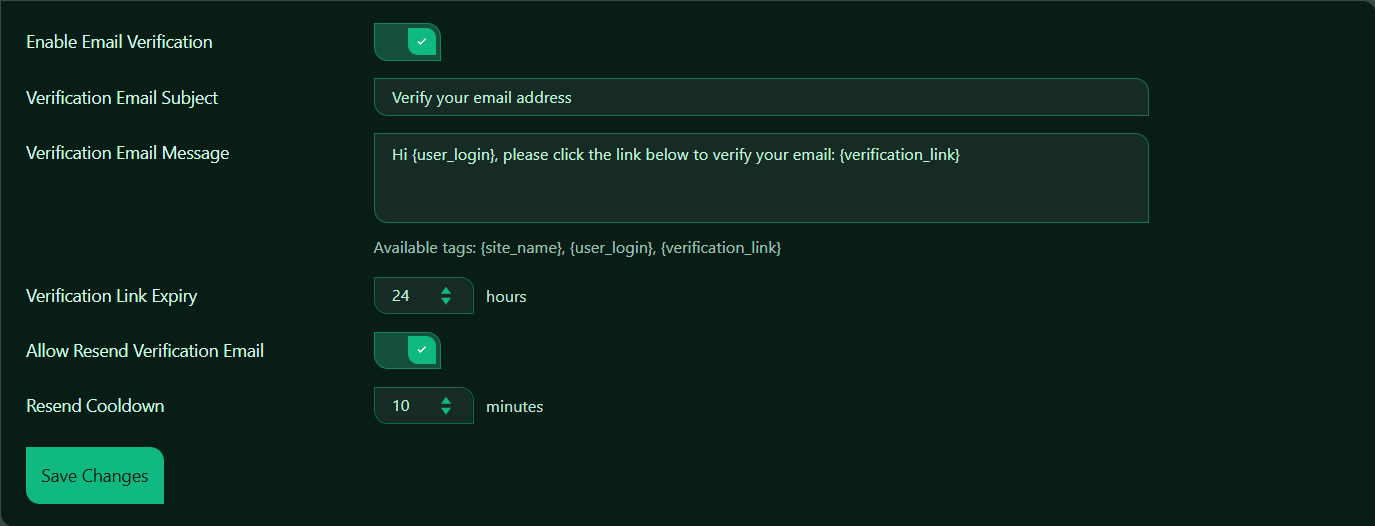
Enable Email Verification
This setting turns Email Verification on or off. Recommended setting is enabled.
When enabled, Authica will require users to verify their email address using a verification link sent by email.
When disabled, users will not be required to verify their email address through Authica.
Use Email Verification when your site allows user registration, member accounts, customer accounts, or any login-based user access.
Verification Email Subject
This is the subject line of the verification email sent to users. You can customize this text to match your website or brand. The subject should be short, clear, and easy for users to recognize.
Verification Email Message
This is the main message sent inside the verification email. You can customize the message, but the email should clearly tell the user what to do.
Important: the message should include the verification link tag: {verification_link}
Available Tags: {site_name}, {user_login}, {verification_link}
Verification Link Expiry
This setting controls how long the verification link remains valid. That means the user has XX hours to click the verification link before it expires. Recommended setting is 24 hours.
Allow Resend Verification Email
This setting allows users to request another verification email if they did not receive the first one or if their verification link expired. When disabled, users may need an administrator to help them if the original verification email is lost, blocked, or expired.
Recommended setting is enabled.
Resend Cooldown
This setting controls how long a user must wait before requesting another verification email. That means the user cannot repeatedly request verification emails without waiting XX minutes between requests.
Recommended setting is 10 minutes.
Save Changes
After changing any Email Verification setting, click Save Changes to apply the new configuration.
Changes will not be stored until they are saved.
Unverified Users
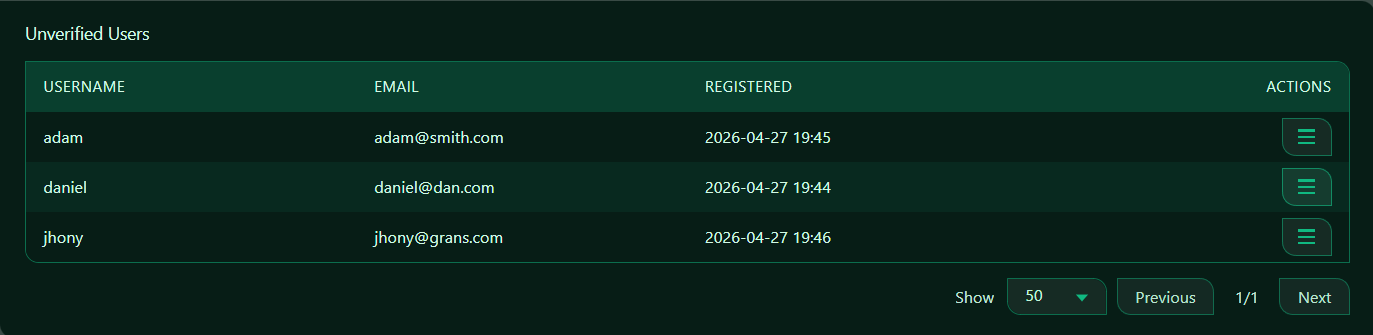
The Unverified Users table displays WordPress users who have registered but have not completed email verification.
This section helps administrators review pending accounts, resend verification emails, manually verify users, or remove accounts that should not remain active.
Actions
The Actions button opens the available management options for that unverified user.
Resend Verification Email
Sends a new verification email to the selected user.
Use this when a user says they did not receive the original email or their previous verification link expired.
Delete User
Removes the selected user account.
Use this for fake registrations, test accounts, obvious spam accounts, or accounts that should not remain on the site.