
WAF Sensitivity / Mode
The Sensitivity / Mode tab controls how Authica’s Web Application Firewall reacts when a request matches one of your enabled WAF rules.
This page lets you choose whether WAF matches should be blocked immediately or only monitored, and how strict the request detection should be.
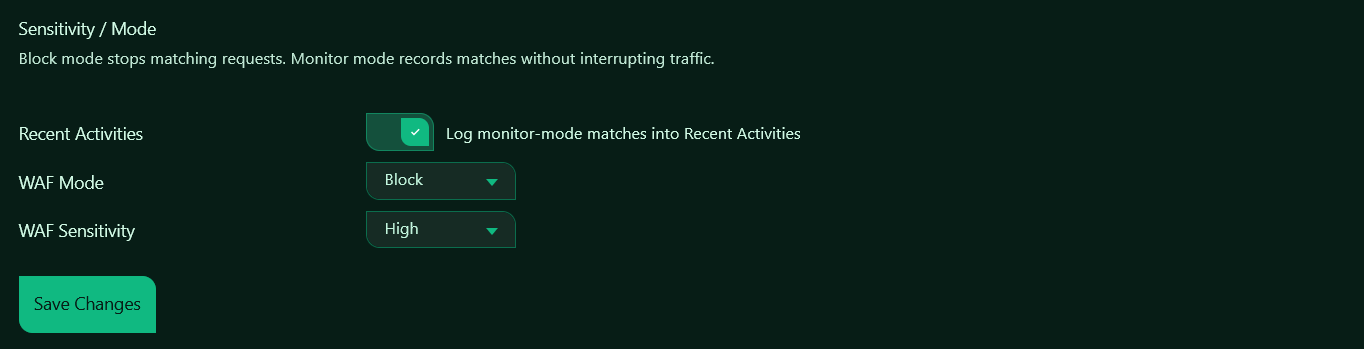
Recent Activities
The Log monitor-mode matches into Recent Activities option controls whether WAF matches are recorded when the WAF is running in Monitor mode.
When enabled, Authica will add monitor-mode WAF detections to Logging, Reports & Alerts → Activity. This lets you review suspicious requests without interrupting visitors.
This is useful when testing the WAF, tuning sensitivity, or checking whether a rule may create false positives before switching to full blocking.
When disabled, monitor-mode matches are not added to Recent Activities.
WAF Mode
The WAF Mode setting controls the main enforcement behavior of the firewall.
Monitor
Monitor mode records matching requests without blocking them.
Use Monitor mode when you want to test WAF rules safely on a live site. Visitors are not interrupted, but suspicious requests can still be logged if Log monitor-mode matches into Recent Activities is enabled.
Monitor mode is recommended when first enabling the WAF or after changing sensitivity.
Block
Block mode stops matching requests.
When a request triggers an enabled WAF rule, Authica blocks it according to your settings in the Block Responses tab. Depending on your configuration, Authica may also add the visitor IP to the IP Restriction Deny List or Stealth 404 List.
Block mode is recommended once you have confirmed that your WAF rules are working correctly for your site.
WAF Sensitivity
The WAF Sensitivity setting controls how strict Authica should be when matching suspicious request patterns.
Low
Low sensitivity uses the safest matching behavior.
This setting reduces the chance of false positives, but it may also allow more suspicious traffic through. Use Low if your site has complex plugins, unusual URL parameters, custom APIs, or third-party integrations that are being flagged too aggressively.
Medium
Medium sensitivity provides a balanced level of protection.
This is a good starting point for most sites. It offers stronger detection than Low while still keeping false positives manageable.
High
High sensitivity applies stricter detection rules.
This setting is best for sites that want stronger protection and are comfortable reviewing exclusions if needed. High sensitivity may detect more suspicious traffic, but it can also require more tuning on sites with advanced forms, custom endpoints, or unusual request data.
Recommended Setup
For most websites, start with:
– WAF Mode: Monitor
-WAF Sensitivity: Medium or High
-Log monitor-mode matches into Recent Activities: Enabled
After reviewing activity logs and confirming that normal site traffic is not being flagged, switch to:
– WAF Mode: Block
– WAF Sensitivity: High
Saving Changes
After changing WAF mode, sensitivity, or activity logging, click Save Changes.
Changes do not apply until they are saved.
Related Settings
Firewall Rules
Choose which attack categories Authica should inspect, such as SQL Injection, XSS, Path Traversal, Remote Code Execution, scanner probes, and malicious user-agents.
Exclusions
Allow trusted URLs, parameters, or request patterns to bypass WAF inspection.
Block Responses
Choose what happens when a request is blocked, including HTTP status behavior, custom block responses, Deny List integration, and Stealth 404 escalation.
Statistics
Review WAF activity and see which rule groups are being triggered.