
Security Checkup
The Security Checkup page gives you a quick overview of your Authica login security configuration.
It reviews important Authica protection areas, shows which features are configured, and calculates a Login Protection Score based on enabled protections, access controls, threat detection, logging, alerts, and recovery tools.
This page is designed to help you quickly see what is already protected and what still needs attention.
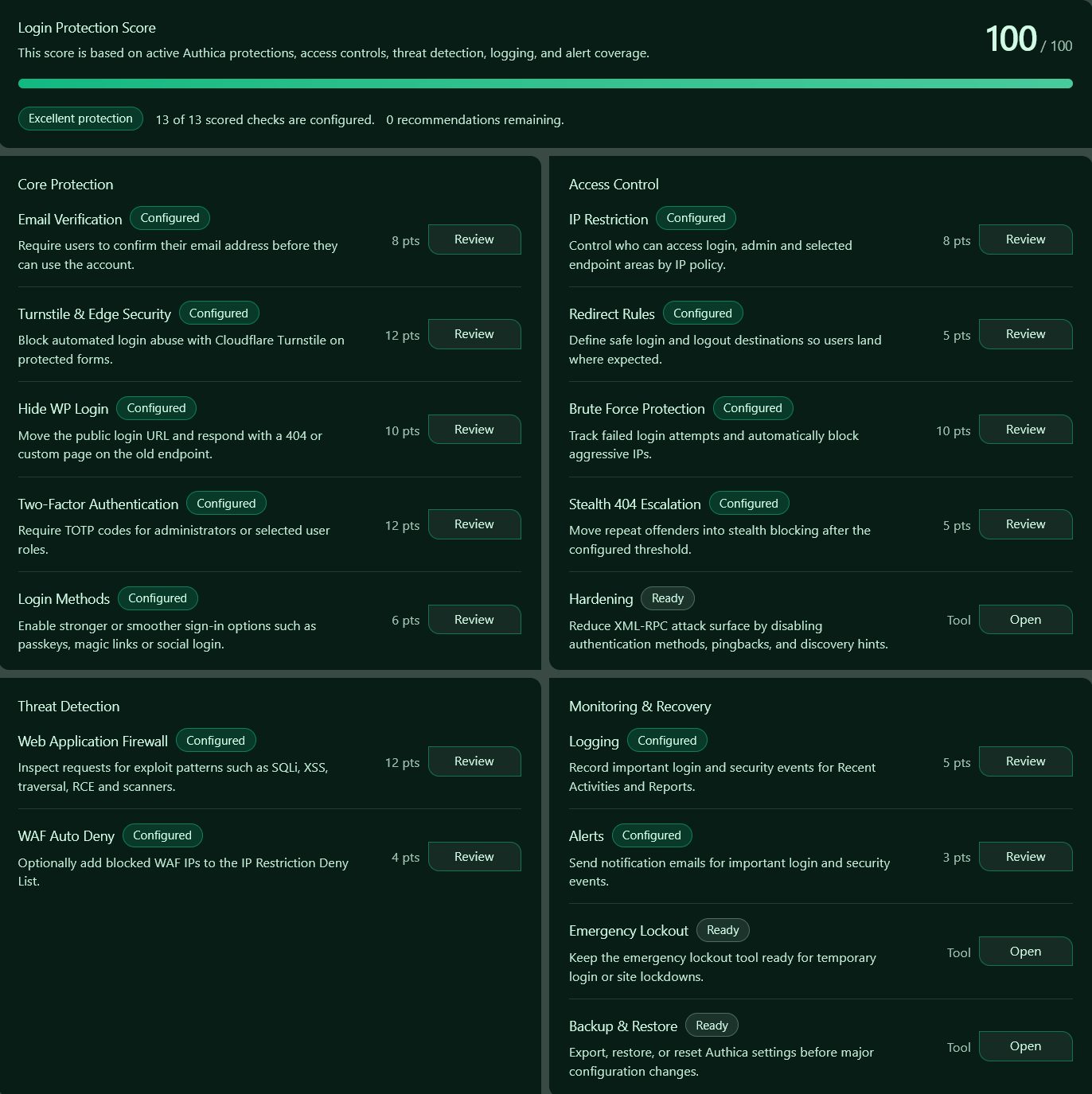
Login Protection Score
The Login Protection Score shows your current protection level out of 100.
A higher score means more recommended Authica security checks are configured.
Example: 100 / 100
This means all scored checks are configured and no recommendations remain.
The score is based on active Authica features such as:
Email verification
Turnstile protection
Hidden login URL
Two-factor authentication
Brute force protection
IP restriction
WAF protection
Logging
Alerts
Backup and recovery readiness
Protection Status
Below the score, Authica shows a protection summary.
Example:
Excellent protection
13 of 13 scored checks are configured.
0 recommendations remaining.
This gives you a quick status without needing to review every setting manually.
Possible states may include lower protection levels if important features are disabled or incomplete.
Configured, Ready, and Review States
Each item on the page includes a status badge.
Configured
A Configured badge means the feature is active and counted toward the Login Protection Score.
Example:
Two-Factor Authentication: Configured
Ready
A Ready badge means the feature is available as a tool, but it may not directly add score points.
Example:
Emergency Lockout: Ready
Backup & Restore: Ready
Hardening: Ready
These tools are still important because they help with recovery, emergency access, and attack-surface reduction.
Core Protection
The Core Protection section covers the main login security features.
Email Verification
Requires users to confirm their email address before they can use the account.
This helps reduce fake accounts, mistyped email addresses, and unauthorized registration abuse.
Turnstile & Edge Security
Blocks automated login abuse using Cloudflare Turnstile and related edge security checks.
This helps reduce bot traffic, fake login attempts, and automated form abuse.
Hide WP Login
Moves the public WordPress login URL away from the default login path.
This reduces automated attacks against the standard WordPress login endpoint and can respond with a 404 or custom page on the old endpoint.
Two-Factor Authentication
Requires TOTP-based verification codes for administrators or selected user roles.
This adds an extra layer of login protection even if a password is compromised.
Login Methods
Covers stronger or smoother sign-in options such as passkeys, magic links, and social login.
These methods can improve both security and user experience depending on how your site is configured.
Access Control
The Access Control section covers who can access protected areas and how suspicious users are handled.
IP Restriction
Controls who can access the login page, admin area, and selected endpoint areas based on IP policy.
This helps limit access to trusted users, regions, networks, or individual IP addresses.
Redirect Rules
Defines safe login and logout destinations so users land where expected.
This helps prevent confusing redirects and keeps user flows predictable after authentication.
Brute Force Protection
Tracks failed login attempts and automatically blocks aggressive IP addresses.
When repeated failed attempts exceed your configured threshold, Authica can add the IP to the deny list.
Stealth 404 Escalation
Moves repeat offenders into stealth blocking after the configured threshold.
Instead of clearly telling attackers they are blocked, Authica can make protected areas appear unavailable.
Hardening
Provides tools to reduce unnecessary WordPress attack surface.
This can include disabling risky or abused authentication methods, XML-RPC access, pingbacks, or discovery hints depending on your configuration.
Threat Detection
The Threat Detection section focuses on active attack detection.
Web Application Firewall
Inspects requests for exploit patterns such as:
SQL Injection
Cross-Site Scripting
Path Traversal
Remote Code Execution
Scanner / Sensitive File Probe
Known Malicious User-Agent
When configured, the WAF helps stop suspicious requests before they reach sensitive WordPress functionality.
WAF Auto Deny
Optionally adds blocked WAF IPs to the IP Restriction Deny List.
This helps stop repeat WAF offenders from continuing to send malicious or suspicious requests.
Monitoring & Recovery
The Monitoring & Recovery section covers visibility, notifications, emergency access, and backup tools.
Logging
Records important login and security events for Recent Activities and Reports.
Logging helps you review what happened, when it happened, and which protections were involved.
Alerts
Sends notification emails for important login and security events.
Alerts help you respond faster when suspicious activity, lockouts, or important security events occur.
Emergency Lockout
Keeps an emergency lockout tool ready for temporary login or site lockdowns.
This is useful when you need to quickly restrict access during an active issue.
Backup & Restore
Lets you export, restore, or reset Authica settings before major configuration changes.
This is useful before testing new security settings, migrating sites, or making large changes.
Points
Some checks show a point value.
Example:
Two-Factor Authentication: 12 pts
IP Restriction: 8 pts
Alerts: 3 pts
Point values represent how much each configured feature contributes to the overall Login Protection Score.
Tools marked as Tool may not directly add points, but they still support security operations and recovery.
Review Buttons
The Review buttons take you directly to the related Authica settings page or tab.
Use Review when you want to change a feature’s configuration, confirm its setup, or fix a recommendation.
Examples:
Review IP Restriction
Review Web Application Firewall
Review Alerts
Review Brute Force Protection
Open Buttons
The Open buttons are used for supporting tools such as:
Hardening
Emergency Lockout
Backup & Restore
These tools may not be scored the same way as active protections, but they are important for maintenance, emergency response, and secure administration.
Recommended Usage
Use Security Checkup after installing Authica and after making major configuration changes.
Recommended workflow:
1. Review the Login Protection Score.
2. Check any missing or unconfigured items.
3. Use the Review buttons to open related settings.
4. Enable or configure recommended protections.
5. Return to Security Checkup and confirm the score improved.
For strong login protection, Authica recommends configuring:
Turnstile & Edge Security
Two-Factor Authentication
Hide WP Login
Brute Force Protection
IP Restriction
Web Application Firewall
Logging
Alerts
Backup & Restore
Important Notes
A perfect score does not mean a site is impossible to attack.
The score means the recommended Authica protections are configured. You should still keep WordPress, themes, plugins, PHP, and your hosting environment updated.
Security Checkup is best used as a configuration guide and visibility tool, not as the only measure of website security.