
GEO Access
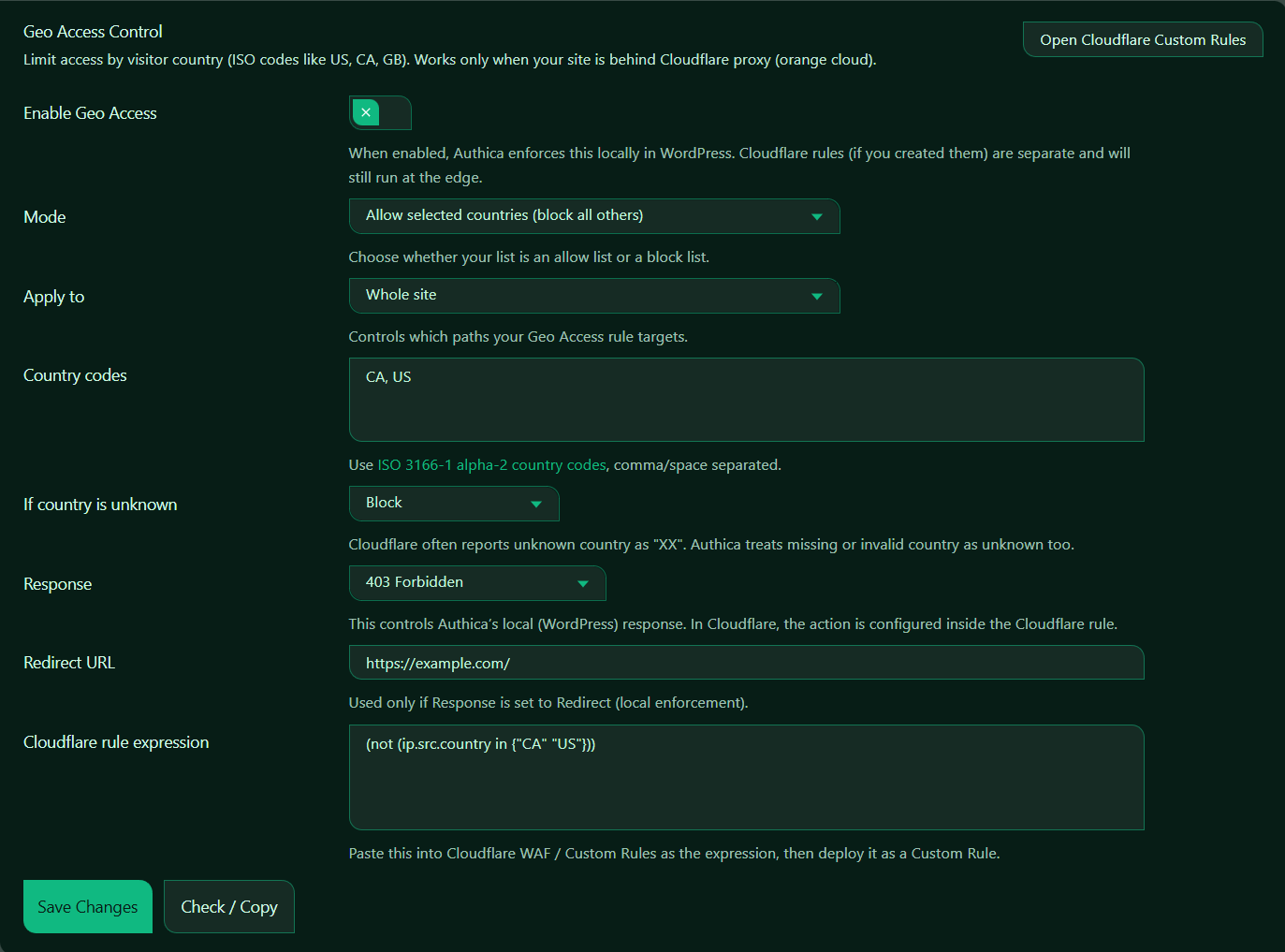
Geo Access Control lets you allow or block visitors based on their country. Authica uses country information provided by Cloudflare, so this feature works only when your site is behind the Cloudflare proxy using the orange-cloud DNS setting.
Geo Access can be used to limit access to your whole site, login area, or selected protected paths depending on your Authica configuration.
Important
Geo Access Control requires Cloudflare proxying.
Your DNS record must be set to Proxied / orange cloud in Cloudflare. If your site is grey-cloud / DNS-only, Authica cannot reliably receive country information, and Geo Access Control will not work.
Open Cloudflare Custom Rules
The Open Cloudflare Custom Rules button opens the Cloudflare area where you can create a WAF / Custom Rule.
Authica can enforce Geo Access locally inside WordPress, but you can also copy the generated Cloudflare rule expression and deploy it at the Cloudflare edge.
Cloudflare edge rules are separate from Authica’s local WordPress enforcement.
Recommended approach:
Use Authica local Geo Access for WordPress-level control.
Use Cloudflare Custom Rules when you want Cloudflare to block or allow traffic before it reaches WordPress.
Enable Geo Access
This setting turns Geo Access Control on or off.
When enabled, Authica checks the visitor’s country code and applies your selected Geo Access rule.
When disabled, Authica does not enforce country-based access rules.
Recommended setting:
Enabled only after confirming your site is behind Cloudflare orange-cloud proxy.
If Cloudflare is not proxied, leave this disabled.
Mode
The Mode setting controls how Authica treats the country list.
Common options include: Allow selected countries and Block selected countries.
Allow selected countries
Only visitors from the listed countries are allowed.
Everyone else is blocked.
Block selected countries
Visitors from the listed countries are blocked.
Everyone else is allowed.
Apply To
The Apply to setting controls where the Geo Access rule is applied. Depending on your Authica version and configuration, this setting may allow you to target different areas, such as the whole site, login-related pages, or specific protected paths.
Use this carefully. A whole-site country rule can block access to all public pages for visitors outside the allowed countries.
Country Codes
The Country codes field is where you enter the countries you want to allow or block.
Authica uses ISO 3166-1 alpha-2 country codes. You can enter multiple countries separated by commas or spaces.
If Country Is Unknown
This setting controls what Authica should do when the visitor’s country cannot be detected.
Cloudflare may report an unknown country as: XX.
Authica may also treat missing, empty, or invalid country data as unknown.
Available behavior may include: Allow or Block.
For production sites, be careful with this setting. If Cloudflare country data is missing because the site is not properly proxied, blocking unknown countries may block legitimate visitors.
Response
The Response setting controls what Authica returns when access is blocked locally inside WordPress.
Depending on available options, Authica may support responses such as: 403 Forbidden, 404 / Stealth response and Redirect.
403 Forbidden
Clearly tells the visitor that access is forbidden.
This is direct and easy to understand.
404 / Stealth response
Shows a not-found style response instead of clearly saying the visitor was blocked.
This can be useful when you do not want blocked visitors to know that a protected page exists.
Redirect
Sends blocked visitors to another URL.
Use this only when you intentionally want blocked visitors redirected somewhere else.
Cloudflare Rule Expression
The Cloudflare rule expression field shows a generated Cloudflare expression based on your selected mode and country codes.
Example: (not (ip.src.country in {“CA” “US”}))
This expression can be copied into Cloudflare WAF / Custom Rules.
Important
This expression is for Cloudflare edge enforcement.
Authica local Geo Access and Cloudflare Custom Rules are separate. Saving the setting in Authica does not automatically deploy the rule to Cloudflare.
Check / Copy
The Check / Copy button helps validate or copy the generated Cloudflare rule expression.
Use this after changing: Country codes, Apply to, Unknown country behavior and Response. Then paste the expression into Cloudflare WAF / Custom Rules if you want Cloudflare to enforce the rule at the edge.
Save Changes
After changing Geo Access settings, click Save Changes.
Settings are not applied until saved.