
Recent Activity
The Recent Activity page shows Authica’s recorded security and login events in a searchable, filterable table.
This page helps you review what happened on your site, when it happened, which module triggered the event, which IP was involved, and what Authica did in response.
Recent Activity is especially useful for:
– Reviewing failed logins and successful logins
– Investigating IP blocks and 404 blocks
– Tracking brute-force or IP restriction events
– Filtering activity by time, event type, module, user, IP, or country
– Quickly taking action on suspicious entries
If your site is behind the Cloudflare proxy and the CF-IPCountry header is available, Authica can also display country prefixes and provide better GEO-aware visibility.
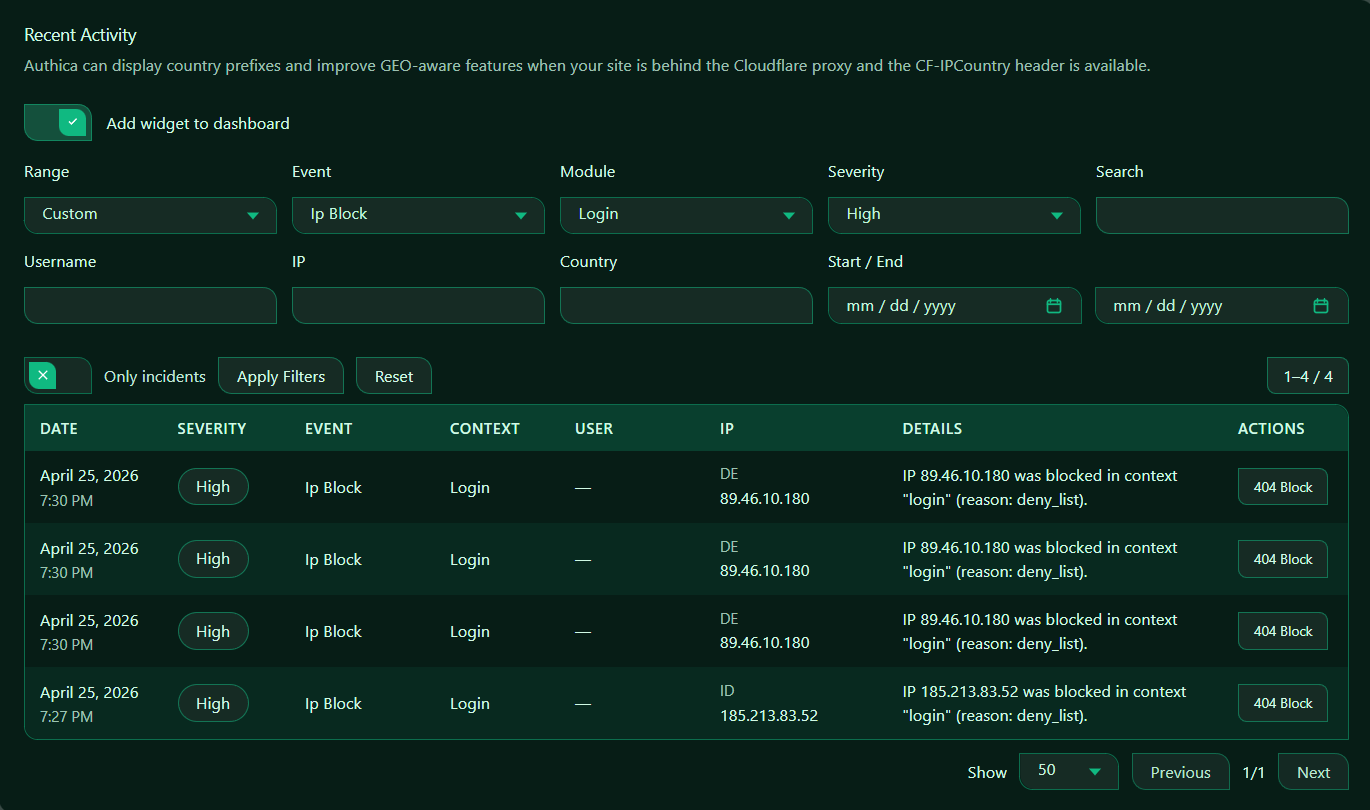
Add Widget to Dashboard
This option controls whether the Recent Activity widget appears on the Authica Dashboard.
When enabled, a compact Recent Activity table is also shown on the dashboard for quick access.
Recommended setting: Enabled.
Use this if you want to monitor recent activity without opening the full Recent Activity page.
Filters
The filter area lets you narrow the activity list so you can focus on the events you care about.
Range
The Range filter controls the time period shown in the table.
Depending on your Authica version, common range options may include things like:
– Today
– Last 24 hours
– Last 7 days
– Last 30 days
– Custom
Use Custom when you want to define your own Start and End dates below.
Event
The Event filter lets you show only specific event types.
Examples of event types may include:
– IP Block
– Failed Login
– Successful Login
– 404 Block
– GEO Access Block
– Brute-force Lockout
Use this filter when you want to focus on one specific type of activity.
Module
The Module filter lets you narrow results by Authica feature or functional area.
Examples of modules may include:
– Login
– IP Restriction
– Brute Force Protection
– GEO Access
– XML-RPC
– Username Protection
Use this when you want to see only activity related to a specific Authica module.
Severity
The Severity filter lets you narrow results by importance level.
Common severity values may include:
– Low
– Medium
– High
– Critical
Use higher severity filters when you want to focus on more important or suspicious events first.
Search
The Search field performs a general text search across recent activity results.
Use it to find entries containing specific text such as:
– A username
– An event type
– A reason
– A context value
– A detail string
This is useful when you are looking for one specific incident or pattern quickly.
Username
The Username filter narrows results to events related to a specific user account.
Use this when you want to investigate:
– A user’s failed logins
– A user’s successful logins
– Suspicious activity around one account
If the event does not involve a known username, the result may show no user.
IP
The IP filter narrows results to a specific IP address.
Use this when you want to investigate:
– Repeated suspicious activity from one IP
– A blocked attacker
– A legitimate user’s access issue
This is one of the most useful filters when reviewing security events.
Country
The Country filter narrows results by country code.
Use this when you want to review activity from a specific country, such as:
– US
– CA
– DE
– GB
This works best when Authica can receive GEO data, usually through Cloudflare.
Start / End
The Start / End date fields let you define a custom date range.
Use these together with the Range filter when you want very specific reporting, for example:
– Activity from the last 2 days
– Activity during a specific incident window
– Activity between two exact dates
This is useful for investigating a known event timeline.
Only Incidents
The Only incidents toggle limits the table to incident-style events only.
This helps reduce noise by hiding lower-priority or purely informational activity.
Use this when you want to focus on:
– Security-related events
– Important warnings
– Suspicious or actionable activity
Recommended usage:
Enable this when investigating attacks or suspicious behavior.
Apply Filters
The Apply Filters button applies the currently selected filter settings to the table.
Use this after changing one or more filters.
If you change filters but do not apply them, the table may continue showing the previous result set.
Reset
The Reset button clears the current filters and returns the table to its default state.
Use this when:
– You want to start a fresh search
– Your filters are too narrow
– You want to see all recent activity again
Result Counter
This indicates how many matching results are currently shown and the total number of matches in the current filtered view.
Example meaning: Showing results 1 through 4 out of 4 total.
Activity Table
The main Recent Activity table shows the filtered event results.
Each row represents one recorded event.
Date
The DATE column shows when the event happened.
Use this column to understand the sequence of events and when an incident occurred.
Severity
The SEVERITY column shows the importance level of the event.
This helps you quickly identify which rows may need faster attention.
Event
The EVENT column shows the event type. This tells you what happened.
Examples on other rows may include other Authica event types such as failed logins or successful logins.
Context
The CONTEXT column shows where or in what area the event happened.
This tells you the event happened in the login context.
Other contexts may vary depending on module and event type.
User
The USER column shows the user account involved in the event, if any.
For events like successful login, this column may show a username.
IP
The IP column shows the source IP address for the event.
When country data is available, Authica can show the country prefix before the IP.
This is one of the most important columns when reviewing suspicious activity.
Details
The DETAILS column explains what happened in more human-readable form.
This is very useful because it explains:
– Which IP was involved
– What action was taken
– In which context it happened
– Why it happened
Use this column to quickly understand each event without needing deeper technical investigation first.
Actions
The ACTIONS column gives you quick action buttons related to the event.
Use this when you want to escalate the response against a suspicious IP.
Recommended usage:
Use quick actions carefully, especially on production sites, because they can immediately affect access behavior.
Recommended Workflow
A good way to use Recent Activity is:
1. Open Recent Activity
2. Choose a time range
3. Filter by event, module, or severity
4. Narrow by username, IP, or country if needed
5. Apply Filters
6. Review the Details column
7. Use Actions only when you are sure you want to escalate or change handling
This makes the page very useful for incident review and general security monitoring.
Recommended Usage
For most websites, the most useful filters are:
– Severity = High
– Event = Failed Login or IP Block
– Module = Login
– Only incidents = Enabled
This gives you a fast view of suspicious or security-relevant events.
For account troubleshooting, use:
– Username filter
– IP filter
– Date range
For GEO investigation, use:
– Country filter
– IP filter
– High severity
Best Practices
Recommended best practices:
– Keep logging enabled so Recent Activity has data
– Use the dashboard widget for quick visibility
– Filter by High severity first when investigating
– Review Details carefully before taking action
– Use IP and Username filters for focused troubleshooting
– Enable Cloudflare proxy if you want GEO-aware visibility
Important Notes
Recent Activity depends on Authica logging. If logging is disabled, this page will not show useful event history.
Country prefixes depend on Cloudflare GEO data. If your site is not behind the Cloudflare orange-cloud proxy, country information may not appear.
Quick actions such as 404 Block can affect how suspicious visitors are handled, so use them carefully.