
Exports
The Exports section lets you download Authica log data for external review, reporting, archiving, or investigation.
You can filter the export before downloading it, so the exported file contains only the events you need.
Authica supports exporting activity data in:
CSV
JSON
CSV is useful for spreadsheets. JSON is useful for technical review, integrations, or structured data processing.
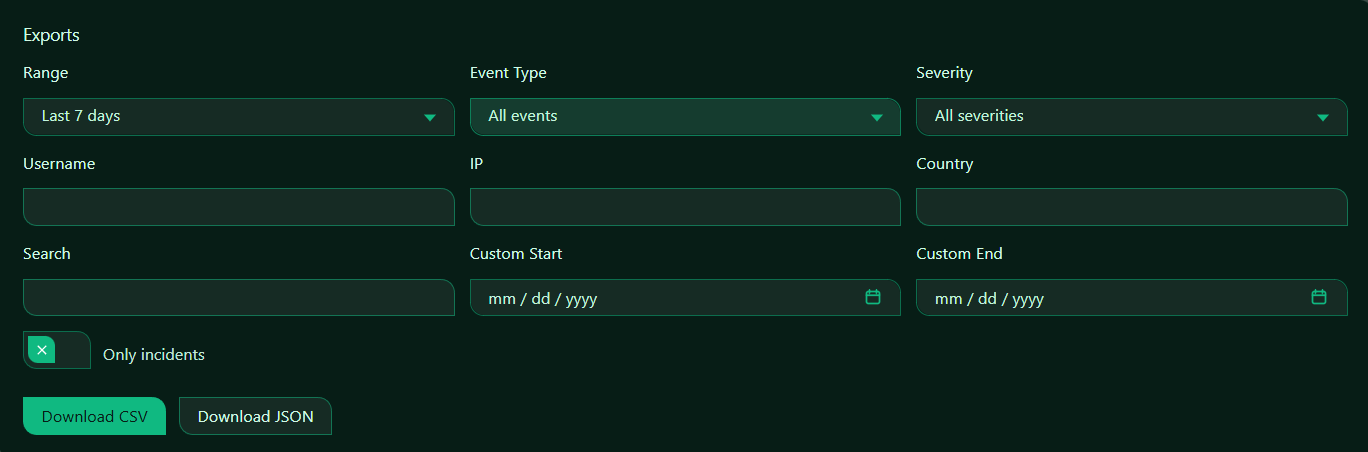
What Exports Are Used For
Use Exports when you need to:
– Save a copy of recent security activity
– Review events outside WordPress
– Share filtered logs with a developer, administrator, or support team
– Investigate a specific IP, username, country, or event type
– Keep a record before resetting or trimming logs
Exports are based on the stored Authica log data. If logs have already been reset or removed by retention rules, those older records will not be available for export.
Export Filters
The filters let you control which log entries are included in the exported file.
Range
The Range filter controls the time period included in the export.
Common range options may include:
– Today
– Last 24 hours
– Last 7 days
– Last 30 days
– Custom
Use a shorter range for focused exports. Use a longer range when creating broader reports or reviewing older activity.
Event Type
The Event Type filter controls which type of event should be included.
This means the export can include every logged event type within the selected range.
You can narrow this to specific event types when needed, such as:
– Failed login
– Successful login
– IP block
– Brute-force lockout
– Geo access block
– Username protection event
Use this filter when you want a targeted export instead of a full activity dump.
Severity
The Severity filter controls which severity levels are included.
Possible severity levels may include:
– Low
– Medium
– High
– Critical
Use this filter when you want to export only important events.
Username
The Username field filters exported events by a specific user account.
Use this when investigating activity related to one user.
This is useful for reviewing failed logins, successful logins, or suspicious account-specific activity.
IP
The IP field filters exported events by a specific IP address.
Use this when investigating one source address.
This is useful for reviewing repeated attacks, blocked access, brute-force attempts, or suspicious activity from a known IP.
Country
The Country field filters exported events by country code.
This works best when your site is behind Cloudflare proxy and Authica can receive country information from the CF-IPCountry header.
Use this filter when reviewing country-specific activity, GEO Access behavior, or unusual traffic patterns.
Search
The Search field performs a general text search across exportable activity data.
Use it to find entries containing specific words, usernames, IPs, reasons, contexts, or event details.
This is useful when you are looking for a specific pattern but do not want to rely on only one exact filter.
Custom Start
The Custom Start field sets the beginning of a custom export range.
Use this together with Custom End when the Range filter is set to Custom.
This lets you export events starting from a specific date.
Custom End
The Custom End field sets the end of a custom export range.
Use this with Custom Start to define the exact date window you want to export.
This is useful for monthly reports, incident windows, or support investigations.
Only Incidents
The Only incidents option limits the export to incident-style events.
When enabled, Authica exports only events considered more security-relevant or actionable.
Use this when you want to exclude routine informational events and focus on suspicious or important activity.
Recommended usage:
Enable Only incidents when exporting data for security review.
Download Options
Download CSV
The Download CSV button exports the filtered log data as a CSV file.
CSV is best for:
– Spreadsheet review
– Excel
– Google Sheets
– LibreOffice Calc
– Simple reporting
Use CSV when you want to sort, filter, or review logs manually in a table.
Recommended for most non-technical users.
Download JSON
The Download JSON button exports the filtered log data as a JSON file.
JSON is best for:
– Developers
– Technical analysis
– Integrations
– Scripted processing
– Structured data archives
Use JSON when you want the data in a structured format that can be parsed by software or imported into another system.
Recommended Export Workflow
A good export workflow is:
1. Choose the date range.
2. Select the event type if needed.
3. Select the severity if needed.
4. Filter by username, IP, or country if investigating a specific issue.
5. Use Search for extra narrowing if needed.
6. Enable Only incidents if you want security-focused results only.
7. Click Download CSV or Download JSON.
Recommended Usage
For a general weekly review:
Range: Last 7 days
Event Type: All events
Severity: All severities
Format: CSV
For a security incident export:
Range: Custom
Severity: High or Critical
Only incidents: Enabled
Format: CSV or JSON
For investigating one IP:
IP: suspicious IP address
Range: Last 7 days or Custom
Only incidents: Enabled
Format: CSV
For developer or support analysis: Use JSON.
Important Notes
Exports only include data that still exists in the Authica logs.
If older logs were removed by retention settings, maximum entry limits, or Reset Logs, they cannot be included in the export.
Country filters and country prefixes depend on available GEO data. For best country-aware exports, use Cloudflare proxy with the orange-cloud DNS setting.